Daily 30-meter resolution Harmonized Landsat and Sentinel-2 (HLS) true color reflectance (nadir BRDF-adjusted) imagery has been available in Worldview since 2021, but Worldview now offers users the ability to create their own red-green-blue (RGB) image composites by assigning bands to each channel or by selecting a band combination from a pre-generated list. Several indices, such as the Normalized Vegetation Difference Index (NDVI), are also available. The imagery is generated dynamically, so it may take a bit longer to display than normal GIBS layers.

The functionality is available in Worldview through the TiTiler-CMR service produced by the Data Systems Evolution team in the Office of Data Science and Informatics (ODSI) at Marshall Space Flight Center. 

The following options are available for each satellite group – Landsat 8 & 9 and Sentinel-2A, 2B, and 2C – where the “HLS Customizable” option allows the user to assign their selected band to each RGB channel. Others are pre-generated options.

Landsat 

  • HLS Customizable Landsat
  • Reflectance (Color Infrared, Bands 5-4-3)
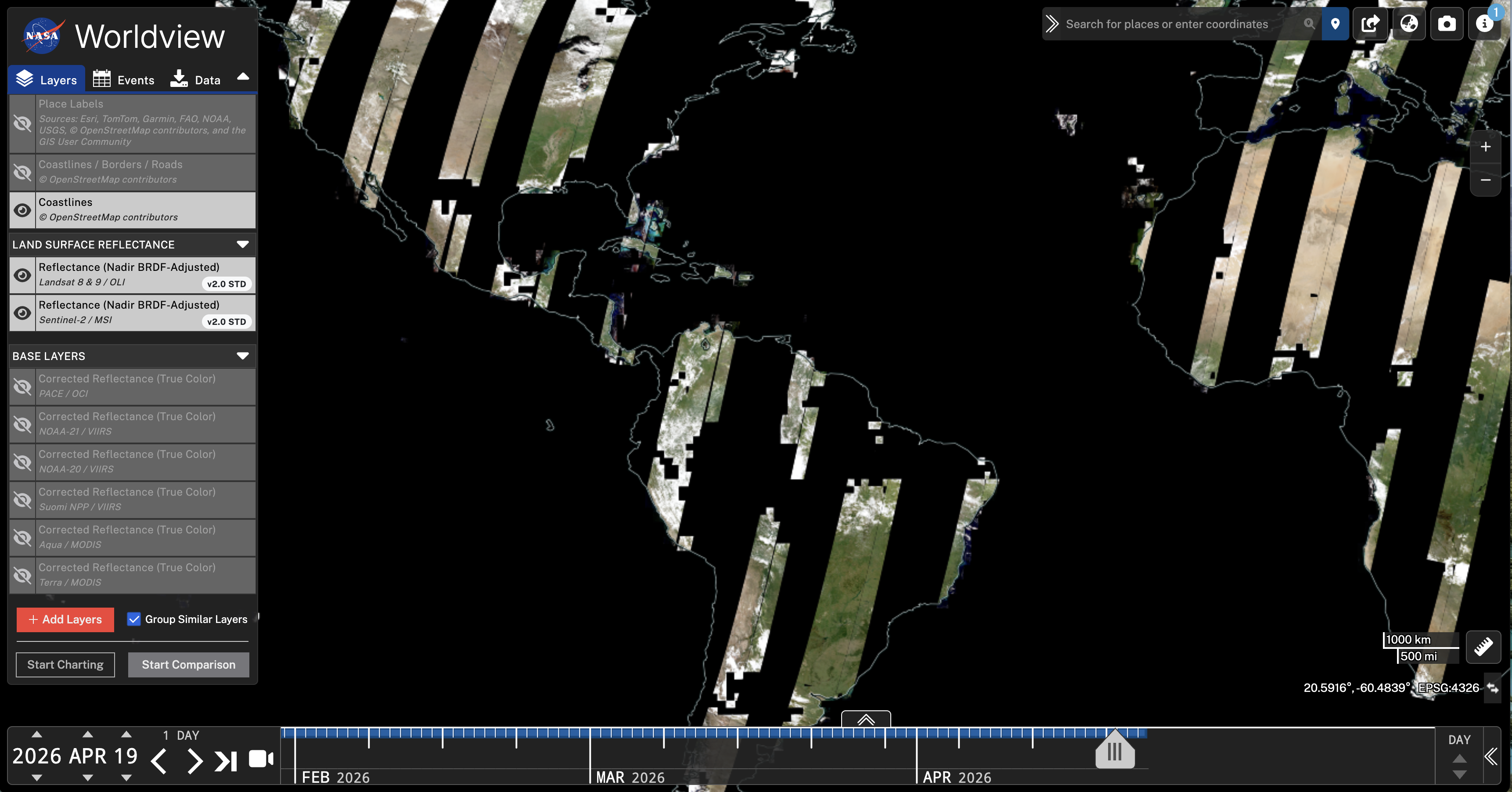
  • Reflectance (Urban False Color, Bands 7-6-4)
  • Reflectance (Vegetative Analysis False Color, Bands 6-5-4)
  • Reflectance (Shortwave Infrared, Bands 7-5-4)

Learn more: What are the best Landsat spectral bands for use in my research?

Sentinel-2

  • HLS Customizable Sentinel
  • Reflectance (Color Infrared, Bands 8-4-3)
  • Reflectance (Urban False Color, Bands 12-11-4)
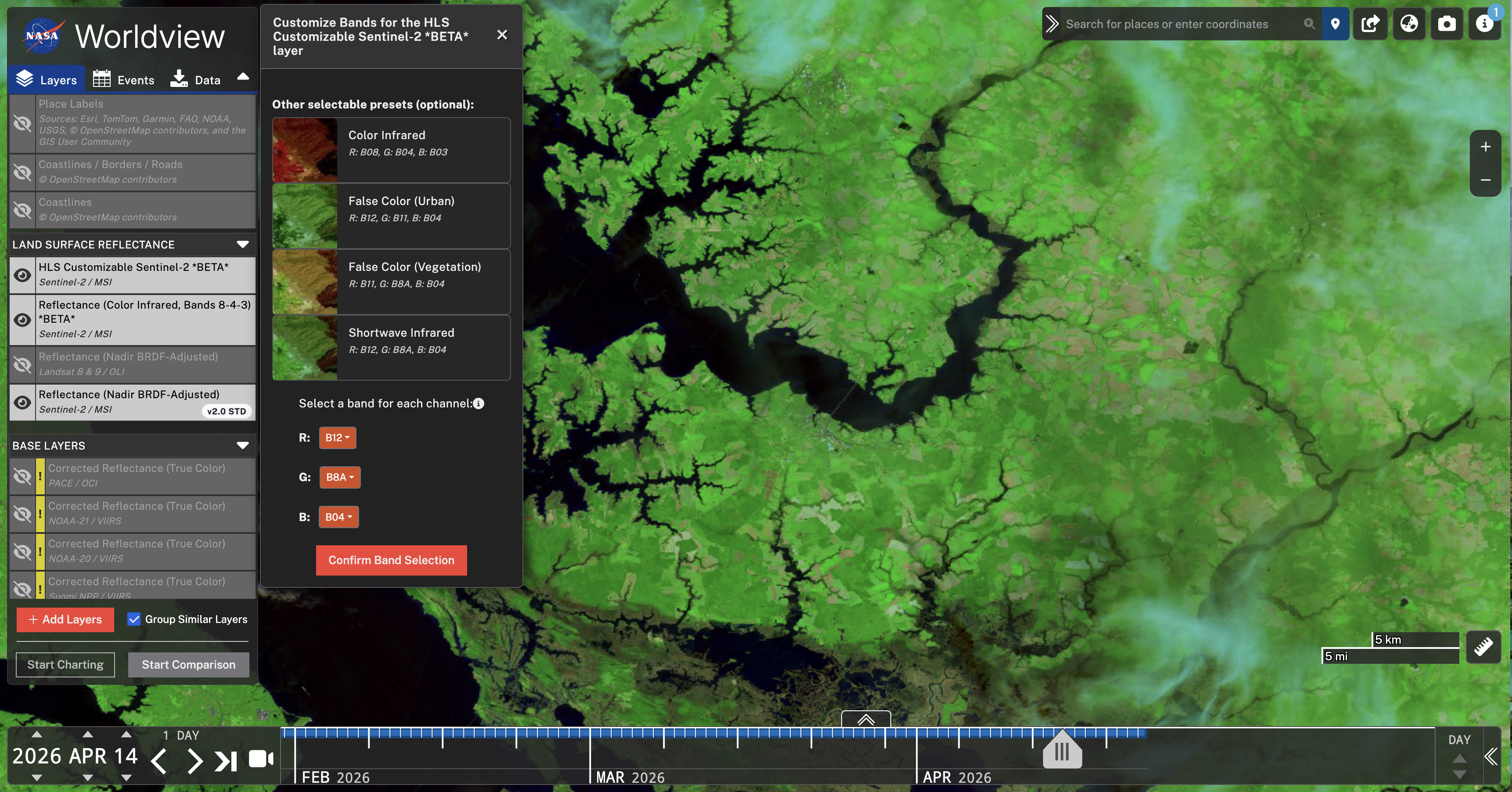
  • Reflectance (Vegetative Analysis False Color, Bands 11-8A-4)
  • Reflectance (Shortwave Infrared, Bands 12-8A-4)

Learn more: Sentinel 2 Bands and Combinations

Landsat and Sentinel-2

  • Vegetation Index (NDVI)
  • Water Index (NDWI)
  • Snow Index (NDSI)
  • Moisture Index (NDMI)
  • Enhanced Vegetation Index (EVI)
  • Soil Adjusted Vegetation Index (SAVI)
  • Modified Soil Adjusted Vegetation Index (MSAVI)
  • Burn Ratio (NBR)
  • Burn Ratio 2 (NBR2)
  • Triangular Vegetation Index (TVI)
Follow the instructions below to start creating your own composites:

1. Load Worldview: worldview.earthdata.nasa.gov

2. Turn off the corrected reflectance (true color) image from Terra/MODIS by clicking on the eye icon to show only the coastlines layer. 

3. Click on the red "+ Add Layers" in the lower left corner of the layer list.

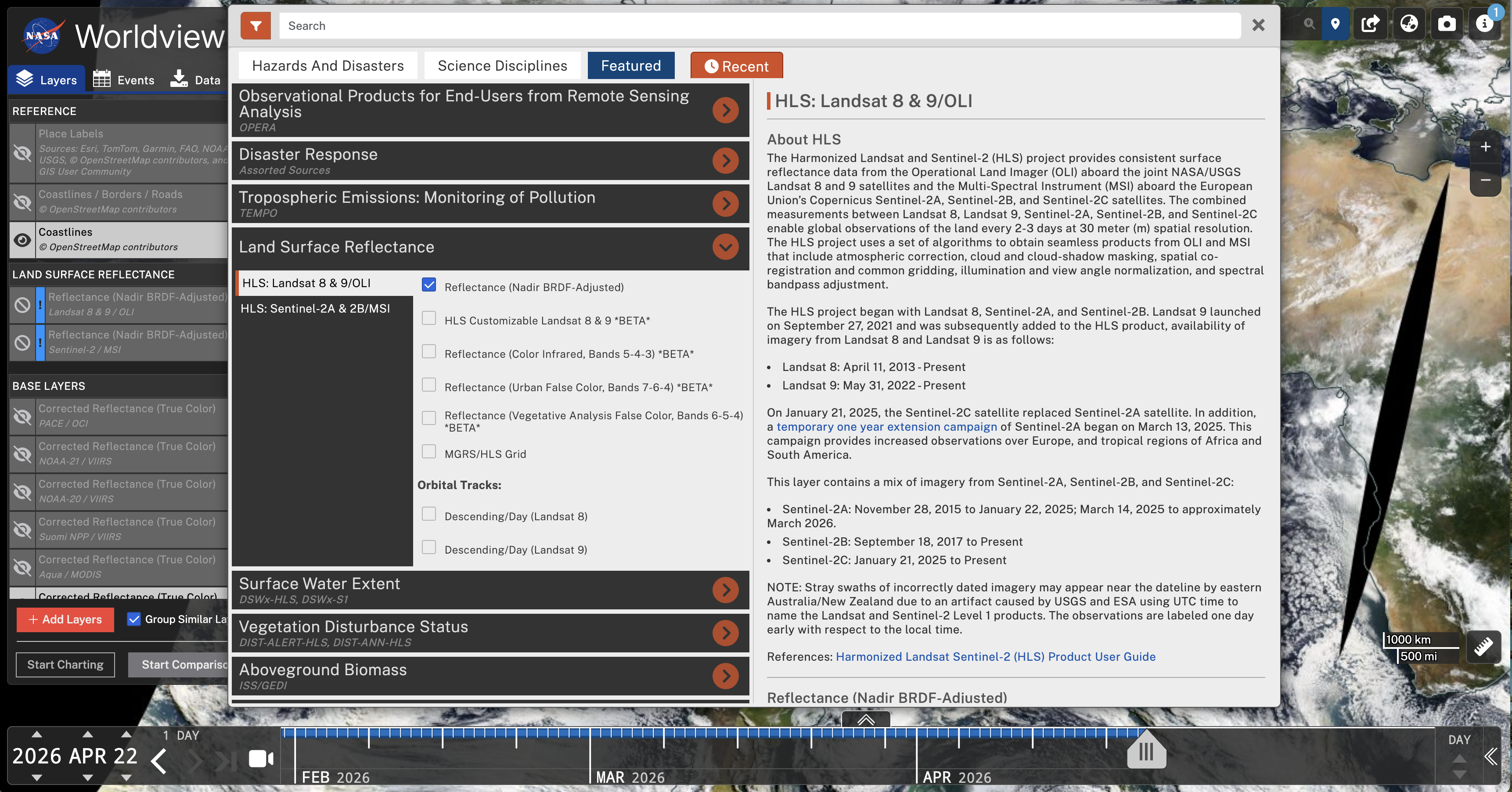
4. Either type “HLS” in the search box or select the third “Featured” tab. Then select "Land Surface Reflectance" and pick either "HLS: Landsat 8 & 9/OLI" or "HLS: Sentinel-2/MSI."

Image

5. Now we’ll want to load some “helper” layers, as the HLS imagery is not available for recent dates and there isn’t global coverage. 

6. Click on the check box next to "Reflectance (Nadir BRDF-Adjusted)" for each satellite group and select a date about 2 to 4 days before the current date. These layers should load quickly and give you a quick overview of where the imagery is located on the globe. (Alternatively, follow the instructions on the “Find Landsat and Sentinel-2 Imagery by Area of Interest in Worldview” tutorial to find available imagery dates).

Image

7. Find your area of interest in the world, and if there isn't imagery there for that day, select a date when there is imagery. 

8. Zoom into that area by clicking on the plus zoom button (in the upper right corner) about five times, or by using your scroll wheel/trackpad/two-fingered pinch-zoom.

9. Go back to the "+ Add Layers" button and load your desired HLS preset band combination from the layer picker. The options are listed above.

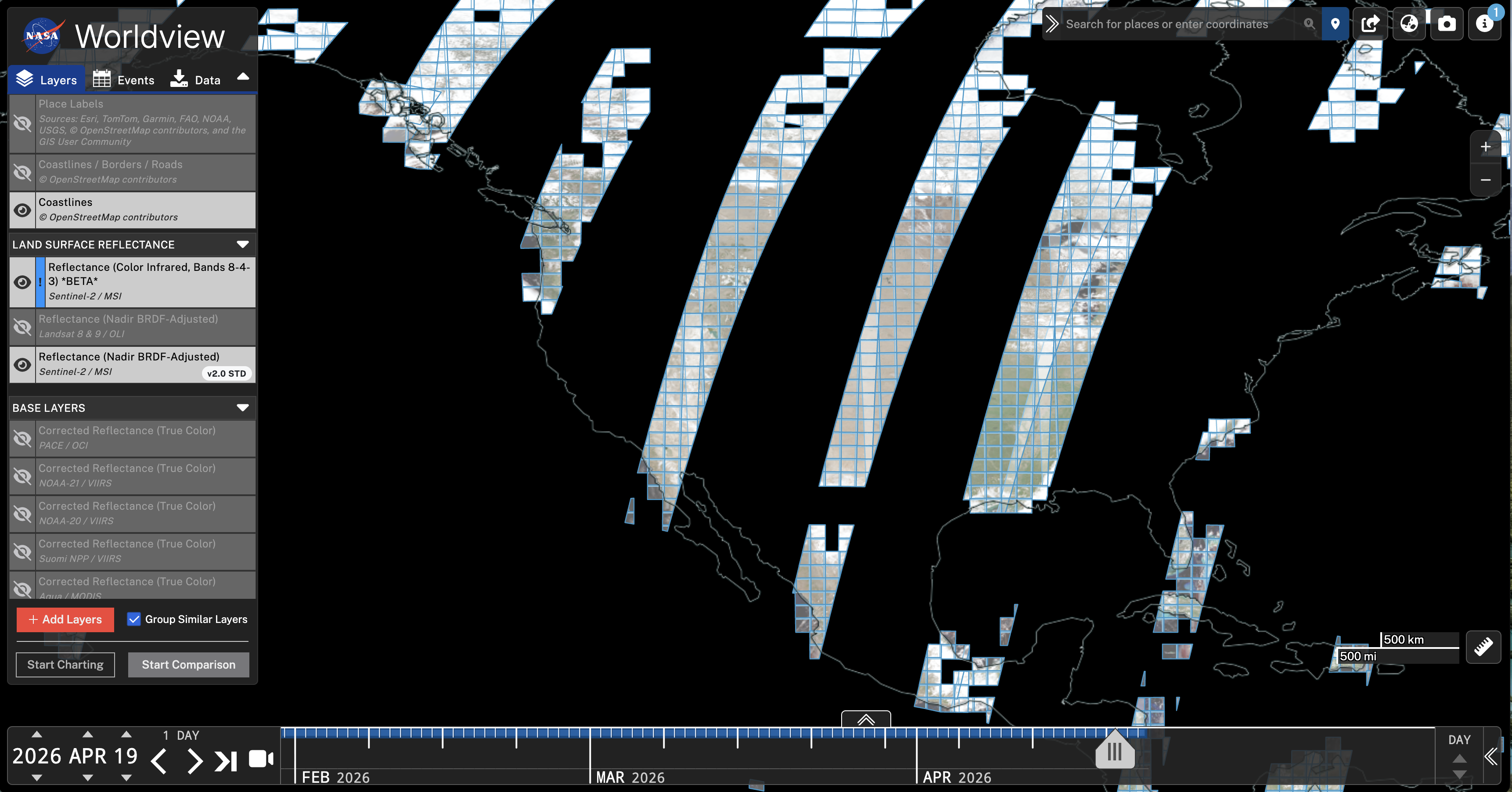
10. If you are still not zoomed in far enough, you will see sets of translucent blue boxes to indicate the areas on the map where imagery is available. Zoom into an area where there is a blue box.

Image

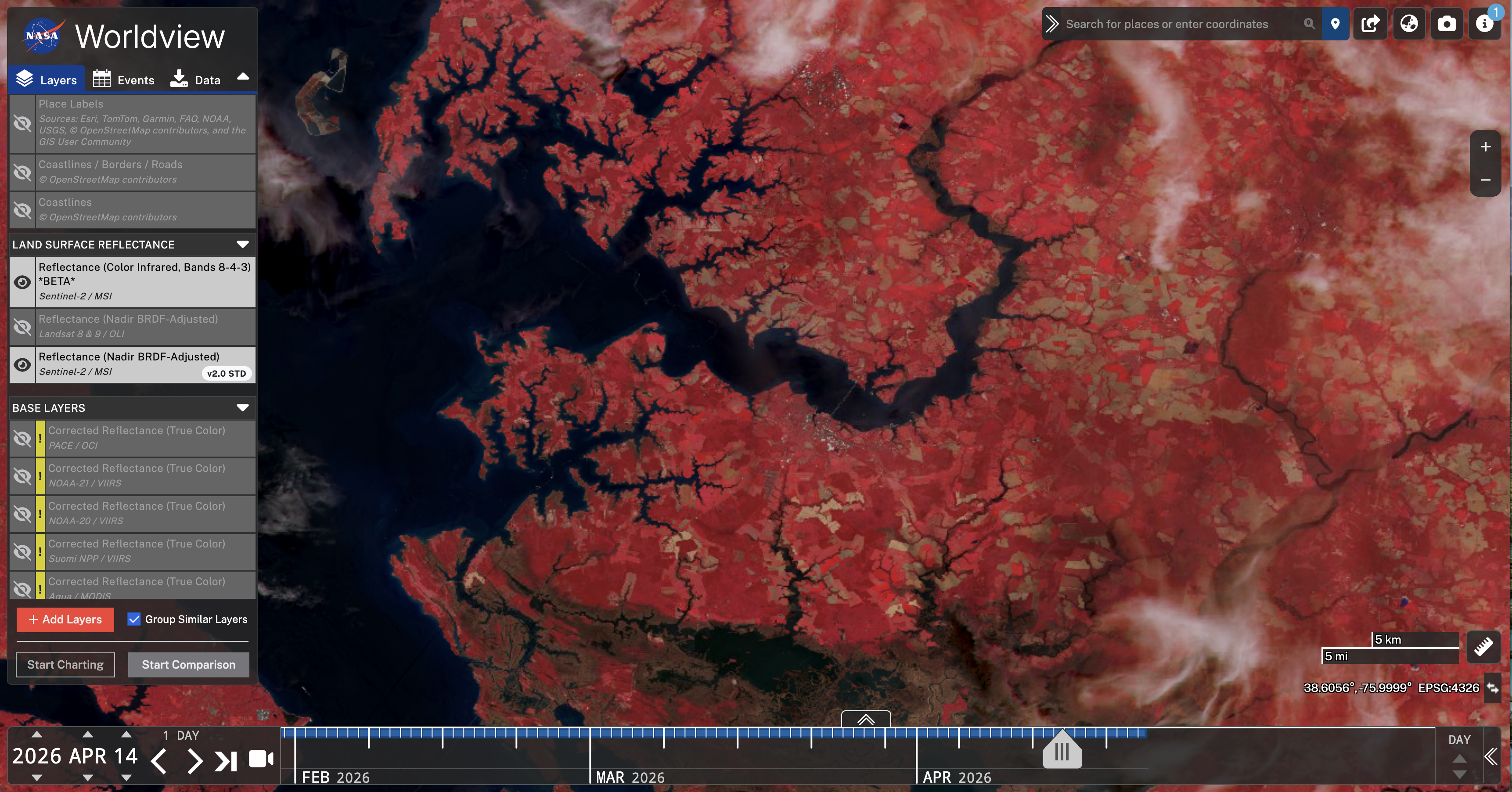
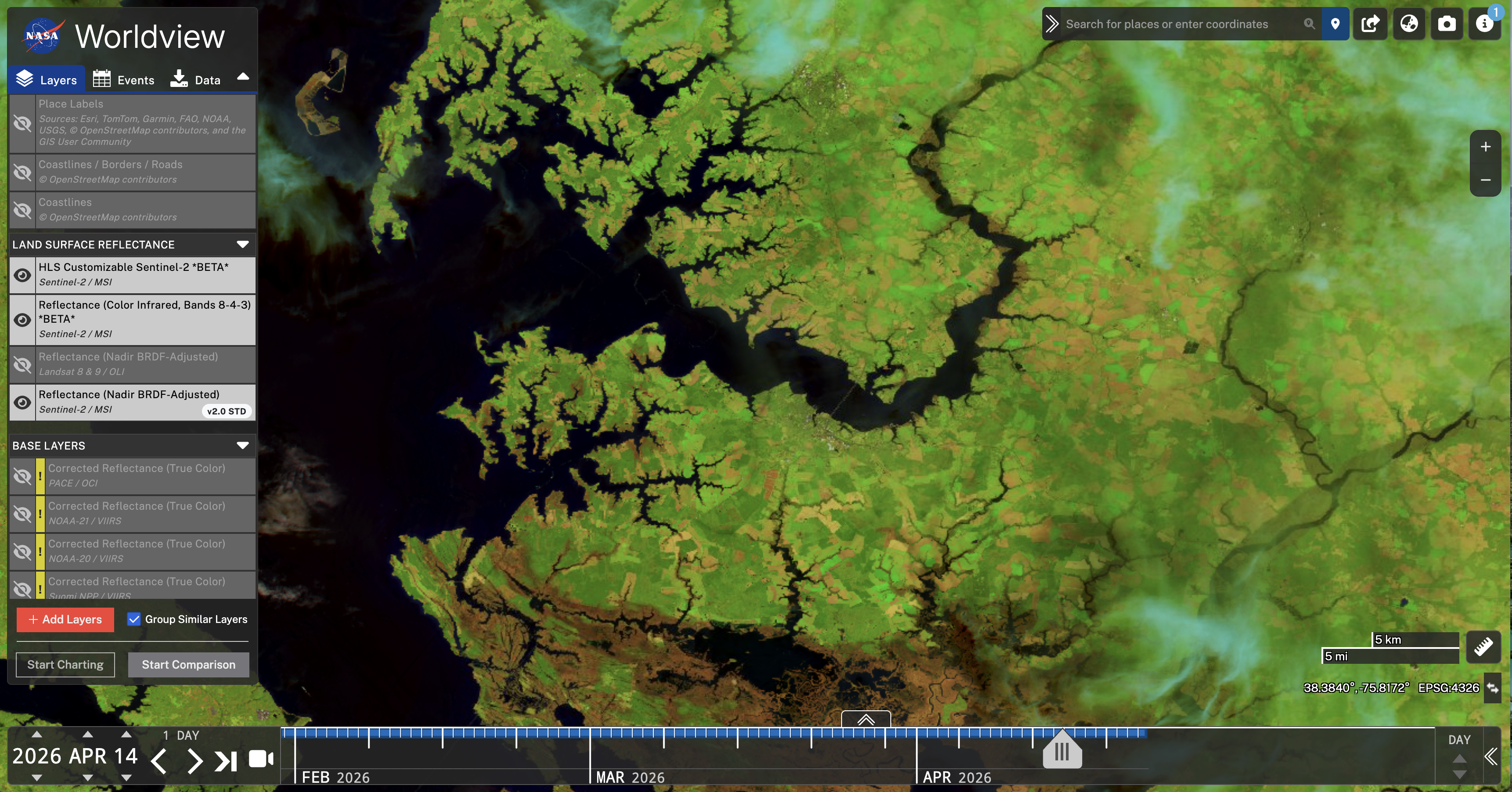
11. Now you can view your selected band combination on the map. Below we're showing "Reflectance (Color Infrared, Bands 8-4-3)" of the area surrounding Cambridge, Maryland. The town of Cambridge is in the center of the image, surrounded by agricultural fields. About 12 miles south is Blackwater National Wildlife Refuge, a refuge for migratory birds with tidal marshes, mixed hardwood and loblolly pine forests, managed wetlands, and croplands.

Image

12. Alternatively, if you would like to set your own band combination, select "HLS Customizable Landsat" or “HLS Customizable Sentinel” in the layer picker.

13. Select "View Options" for the layer in the list and click on the orange "Customize" button.

14. With the Options panel open, you may select pre-set band combinations like the ones listed above. You may also select your own combination under the "Select a band for each channel" drop-down menu. Then click on the orange "Confirm Band Selection" button to submit the selection. Explore all of the different options to find the band combination or index that works best for your research and investigations.

Image

Here are a few more examples of alternate band selections. Below we have selected Sentinel-2 Bands 11 (shortwave infrared), 8 (near infrared), 2 (blue) for each of the RGB channels. This combination can be used to monitor the health of crops. It highlights dense vegetation in dark green.

Image

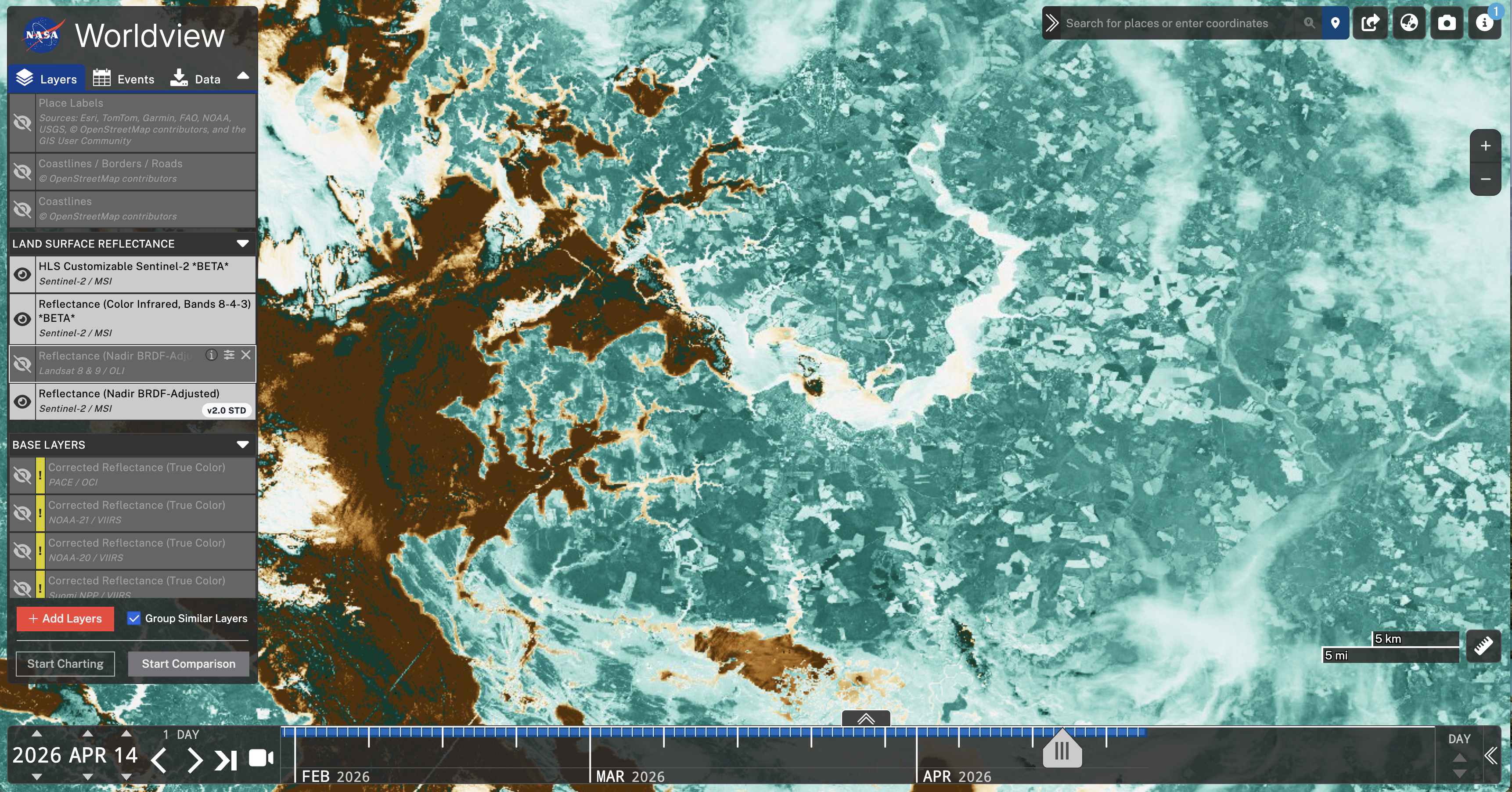
This is an example of the vegetation index (NDVI) for HLS Sentinel-2, which uses the NDVI equation (NIR - Red)/(NIR + Red) where higher values indicate healthy, dense vegetation and lower values indicate barren soil, water, or clouds. In the case of Sentinel-2, the equation is (Band 8 - Band 4)/(Band 8 + Band 4).

Image

Details

Last Updated

April 29, 2026

Published

April 29, 2026