NASA's Integrated Multi-satellitE Retrievals for GPM (IMERG) data provide estimated precipitation for the majority of the Earth's surface, including over oceans and other remote areas. Visualizing this data helps bring critical information to a range of audiences in an easy-to-understand format. Using the Worldview application, users can interactively explore IMERG precipitation imagery and download the specific imagery and data they need.

Image
Image Caption

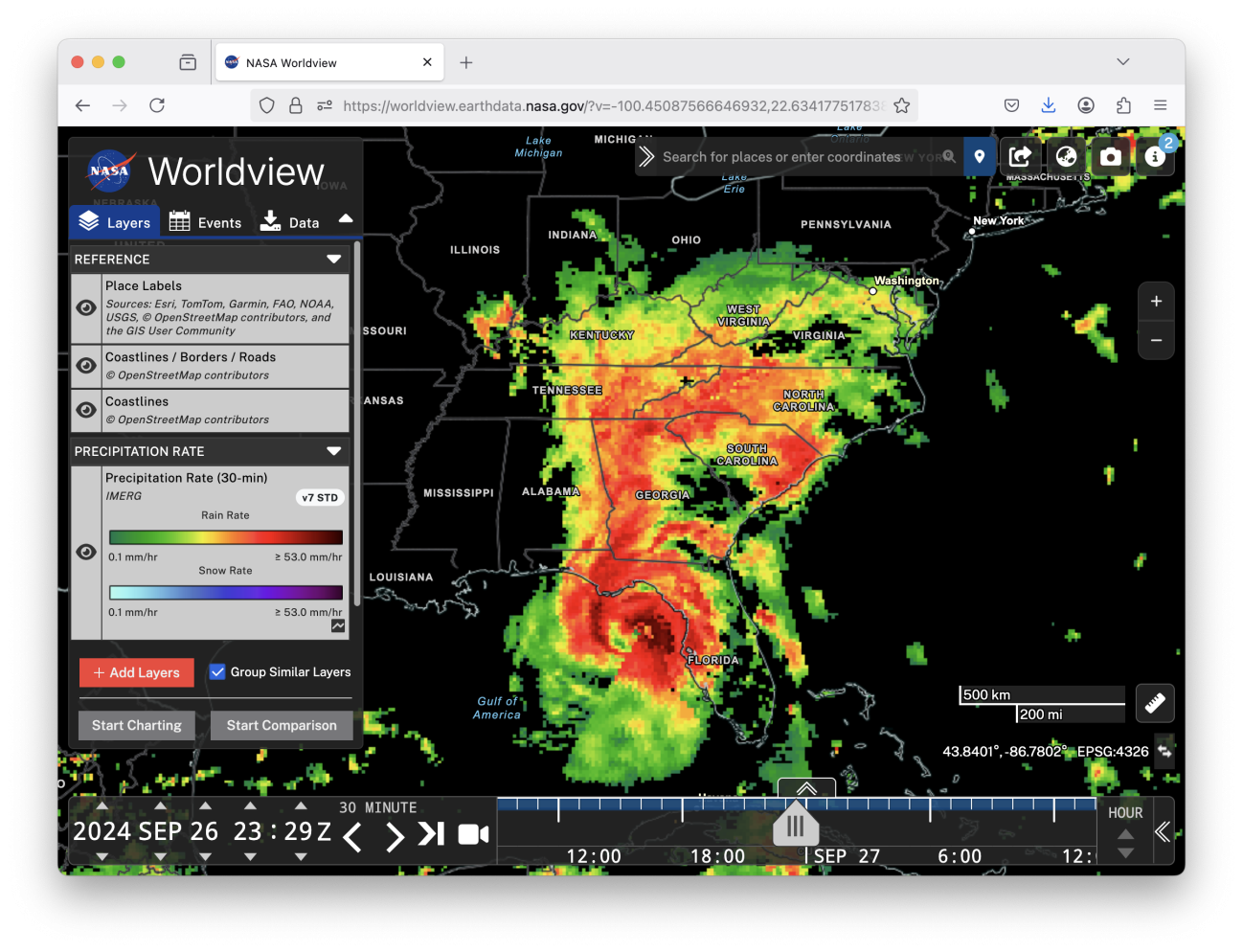
An IMERG snapshot of the precipitation falling from Hurricane Helene as displayed in NASA's Worldview application. The estimate covers a 30-minute period near the end of Sept. 26, 2024. Credit: Worldview

Display IMERG Precipitation

When you first visit Worldview, it loads satellite imagery of the most recent observations of Earth's surface and clouds. Precipitation is not initially displayed. 

It takes two steps to display IMERG precipitation in Worldview:

1. Add the layer that contains 30-minute IMERG precipitation estimates. To do so, click the “Add Layers” button in the lower left corner. In the panel that pops up, type "imerg" into the search field. In the search results, check the box next to the entry for "Precipitation Rate (30-min) IMERG". To dismiss the Add Layers panel, click the "X" symbol in the upper right.

Image
Image Caption

The Add Layers "Layer Picker" panel in Worldview.

2. Move a few hours into the past to find the most recently available IMERG product. To do so, move the time slider a little to the left in the timeline along the bottom of the Worldview window. Alternatively, you can use the arrow icons to move the clock display back a few hours. This time adjustment is necessary because IMERG precipitation estimates are created approximately 5 hours after satellite observations are made and it takes another hour or so to convert the data into Worldview imagery.

Image
Image Caption

The date-time selection interface along the bottom of the Worldview window.

The 30-minute IMERG imagery should now be visible with green, yellow, and red colors indicating increasingly intense rainfall rates, and cyan, blue, and purple colors indicating increasingly intense snowfall rates, shown as the liquid-water equivalent. 

  • To adjust the map's zoom level, use the plus and minus buttons in the Worldview window or the scroll function on your mouse or trackpad.
  • To change the map's location, drag the map with your mouse or trackpad. 

By default, Worldview shows coastlines. For more detailed political boundaries and place labels, turn on optional layers. These optional layers can be found at the top of the layer list on the left side of Worldview.

The IMERG algorithm estimates the precipitation rate at the middle of each 30-minute period, i.e., 15 minutes and 45 minutes after the hour. The units of precipitation rate are the millimeters of rain-equivalent depth that would accumulate in an hour if the observed precipitation rate (rainfall or snowfall) were to persist for a full hour. If the precipitation is frozen, then the value that IMERG reports is the depth of liquid water that would result if the frozen precipitation were melted before its depth is measured. 

The liquid-equivalent depth of snowfall is relevant to the water storage in snowpack, which influences how much water will become available to plants once the snow melts. Because fresh snow contains air (i.e., it's fluffy), about 4 to 20 inches of snowfall will melt down to just an inch of liquid water (Baxter et al. 2005). IMERG states the liquid-equivalent depth of snowfall, but most weather reports state the depth of snowfall in its original, frozen form. 

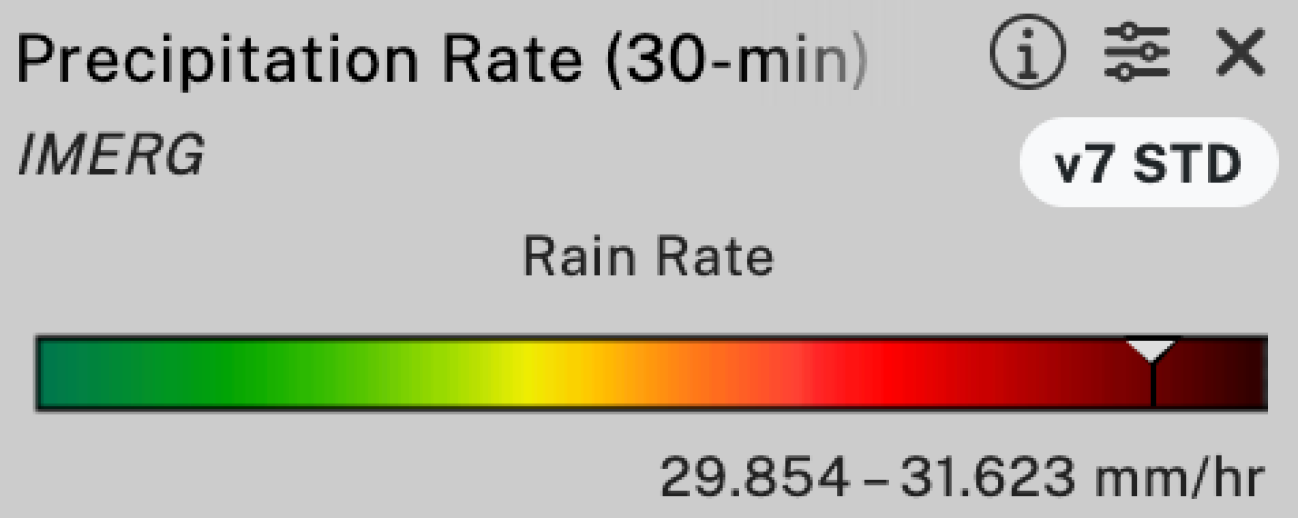
One advantage to viewing IMERG precipitation imagery within Worldview is that hovering over an image in Worldview allows users to obtain a numerical range for the precipitation rate represented by that pixel of the image. The numerical range is displayed in the color bar on the left side of the browser window. This color-table-interrogation feature is available only if you are using a device with a mouse that can hover, such as a laptop or desktop, but not a mobile device.

Image
Image Caption

The Worldview color bar for rainfall. The downward-pointing white triangle indicates the color of the pixel in the IMERG image that is currently under the mouse pointer. The numerical range below the arrow is the range of precipitation rates associated with that color.

View Daily Imagery and Create 30-Minute IMERG Animations

To understand the evolution of a large storm system that travels across a continent or ocean over several days, it may be useful to look at daily-average precipitation rates instead of 30-minute precipitation rates. Using advanced Worldview features, users can access both durations of IMERG precipitation imagery. 

To view the daily imagery, click the “Add Layers” button. In the search field, search for "imerg" again, this time ensuring that both daily and 30-minute datasets are selected. This action will cause both daily and 30-minute imagery to be included in the layer list on the left side of the Worldview window. Now, you will be able to quickly turn these layers on and off using the Hide/Show-Layer icons that look like eyes, located along the left margin of the layer list.

Image
Image Caption

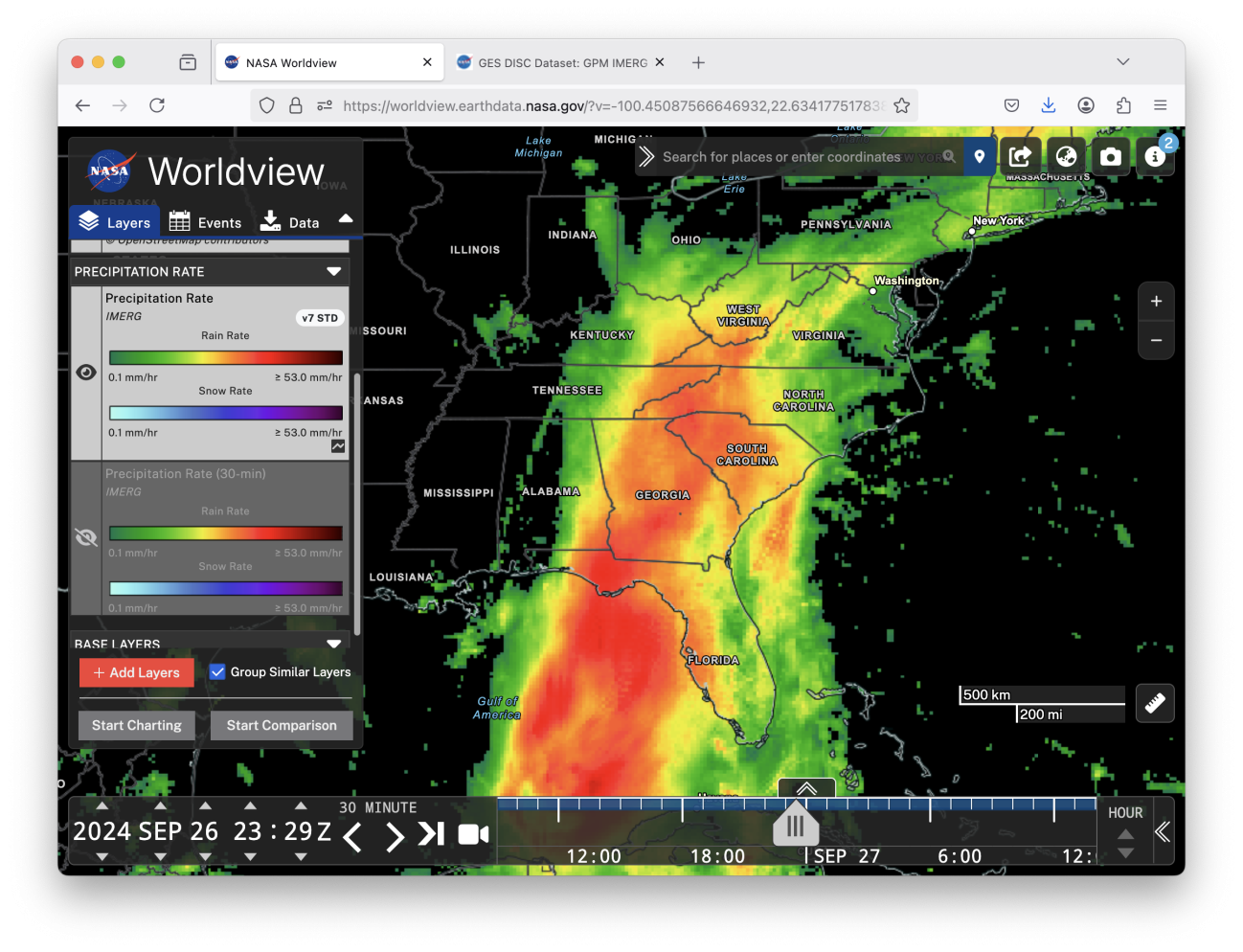
The 24-hour-average IMERG precipitation rate for Sept. 26, 2024, the same date shown in the 30-minute image near the top of this story. As is the case with the 30-minute image, the 24-hour image also shows rain associated with Hurricane Helene. Credit: Worldview

Using Worldview, you can save a sequence of 30-minute IMERG images for future reference. To do so, follow these steps:

1. Click the movie-camera icon near the lower left corner of the Worldview window.

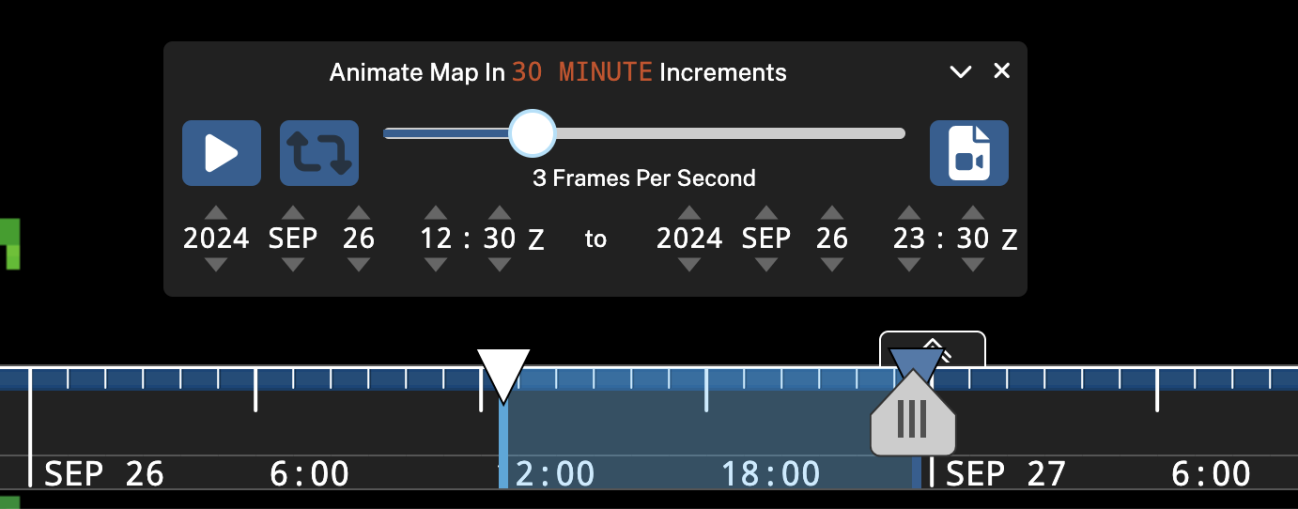
2. Select a date-time range and the desired frames per second. Three frames per second is a good setting, and a 12-hour period is a good duration for a sequence of 30-minute IMERG images. To avoid flickering in the animation, avoid starting or ending the movie at exactly 0 or 30 minutes after the hour.

Image
Image Caption

The pop-up panel for selecting the start and end date-times for saving a sequence of images in Worldview.

3. Click the blue Create an Animated GIF icon. This action will take you to a screen where you can select a geographic region for the animation. Move the boundary of the rectangle defined by a white dotted line until the rectangle covers the region of interest. To avoid creating an unnecessarily large animation, reduce the resolution to just 5 km per pixel.

4. Once the geographic region is selected, click the Create GIF button. Wait a few minutes for Worldview to create the animated GIF. Once it is created, you can click the Download button to save a copy to your hard drive. Web browsers and Microsoft Word will play the animation stored in an animated GIF file. In contrast, other applications like MacOS Preview and Photoshop Elements will list the images stored in the animated GIF but not play the animation.

This sample animated GIF shows IMERG precipitation rates for the southeast United States as Hurricane Helene approached landfall in Florida during the last 12 hours of Sept. 26, 2024.

Obtaining IMERG in a Scientific Data Format

If you wish to use IMERG in your research or add it to your application, most likely you will want to download it in a scientific data format. To download the IMERG HDF5 files for the day you are currently displaying in Worldview, click the Data tab at the top left of the Worldview window. The Data tab is to the right of the Layers and Events tabs.  When you are done downloading files, click the Layers tab so that you can once again see the list of layers loaded into your Worldview session.

IMERG HDF5 files can be read, analyzed, and displayed in scientific programming languages such as Python, Matlab, and IDL. These files can also be displayed by installing the THOR data viewer on your computer. THOR is designed specifically to display GPM data products like IMERG on a map of the Earth. For information about downloading THOR, visit the Precipitation Processing System (PPS) website or read the tutorial.

People unfamiliar with scientific programming languages but comfortable with geographic information systems (GISs) may want to download the GeoTIFF translation of IMERG from PPS. These GeoTIFF files contain precipitation rates multiplied by 10 and stored as two-byte integers. A ReadMe file provides information on downloading and displaying the GeoTIFF translation of IMERG. If you encounter any trouble downloading IMERG data, contact the GPM project using the contact page.
Details

Last Updated

Nov. 21, 2025

Published

Nov. 21, 2025