Requirements
This should be completed before the start of the lab.
Install Sea, earth, atmosphere Data Analysis System (SeaDAS) version 8.3 and up.
Once up and running, install OCSSW data processing components for Moderate Resolution Imaging Spectroradiometer (MODIS)-Aqua (see instructions below the SeaDAS download instructions). Take particular note of the system and software requirements for installation. One issue that has recurred is the absence of a requests library in Python. One example way to resolve this is running the following from a terminal window:
/usr/bin/python3 -m pip install requests You will also need to set up an Earthdata login. Your login credentials then need to be stored in a file in your home directory. In your home directory, create a file called .netrc (note the leading period) using the terminal:
echo "machine urs.earthdata.nasa.gov login USERNAME password  PASSWD" > ~/.netrc ; > ~/.urs_cookies

chmod  0600 ~/.netrc
For USERNAME and PASSWD use your Earthdata Login credentials.
1. The Command Line Environment
All SeaDAS data processing functions are available through a graphical user interface (GUI) and a command line executable. Using the latter requires setting up the proper command line environment.
Open a terminal window. Locate your OCSSW software installation (path).
By default, this should be a subdirectory within your SeaDAS installation. For example: /Applications/seadas/occsw.
Define an environmental variable called OCSSWROOT that points to your OCSSW software installation. The language for doing so depends on your shell. On Apple computers, the default is bash:
export OCSSWROOT=/[Path to SeaDAS OCSSW folder] e.g.
export OCSSWROOT=/Applications/seadas/ocssw Confirm the installation via the command:
printenv OCSSWROOT This should print the [path to SeaDAS] that you entered to your terminal screen.
Finish setting up the command line environment by sourcing the data processing environmental variable file. This file defines the locations of all files required by OCSSW. In bash:
source $OCSSWROOT/OCSSW_bash.env Confirm the environment has been set via the command:
which l2gen This should print the full path to the file l2gen to your terminal screen (e.g., /Applications/seadas/ocssw/bin/l2gen ).
If you experienced an OCSSW install error in Section 0, you may also need to run the following from a terminal window to complete installation of required satellite data files:
update_luts [sensor name] e.g.
update_luts modisa

update_luts viirsj1
See the SeaDAS web site for identification of recognizable instrument names.
2. Data Acquisition
Next, let's locate, download, and identify the file type of Level 1A and Level 2 satellite data. We will use these files over the course of this lab.
Acquire the following MODIS-Aqua files from the OceanColorWeb Level-1/2 browser. They encompass three successive days in the Gulf of Maine, 29 Sep 2018 to 1 Oct 2018:
- A2018272172500.L1A_LAC
- AQUA_MODIS.20180929T172500.L2.OC
- A2018273180500.L1A_LAC
- AQUA_MODIS.20180930T180501.L2.OC
- A2018274171000.L1A_LAC
- AQUA_MODIS.20181001T171001.L2.OC
The above provides everything you need to know to find these files.
- The files come in different file formats. What are they?
Level 1A download as bunzip2 files, which extract to an hdf4 file
Level 2 files are netCDF / hdf5
It's time to open SeaDAS.
3. Level 1 and Level 2 Data Extraction
Full granules can be large. Images with lots of water can take a significant amount of time to process from Level-1 to -2. Let's extract our region of interest, the Gulf of Maine, defined here as:
- 40° to 46° N, and
- -75° to -60° W
You will need to open the full files in SeaDAS first either by going into File > Open Product or by dragging and dropping the files into the SeaDAS file manager.
Use the OCSSW Extractor (GUI) to Create Subsetted Level 1A and Level 2 Files
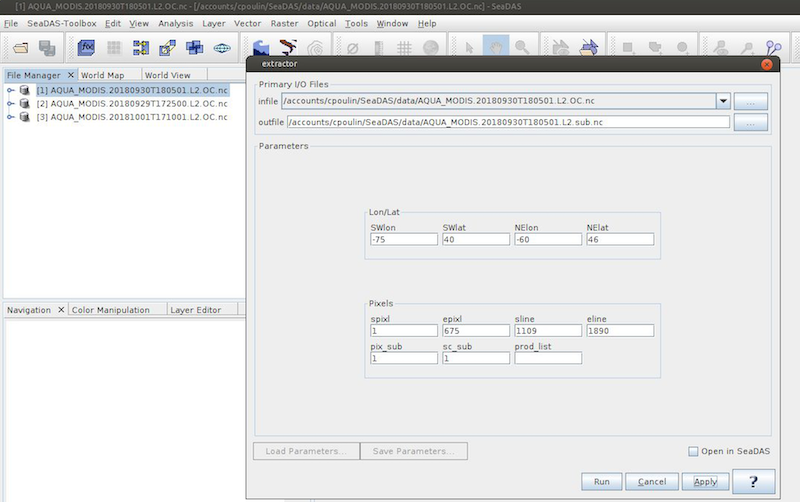
Go to SeaDAS-Toolbox > SeaDAS Processors > extractors
Do the Level-2 files first, using the above latitude and longitude boundaries to define the extract. Do not run the extractor yet. You'll notice that the start and end pixel and line number fields get populated after you've added the latitude and longitude boundaries. Write these down. You will need them to run the Level-1A extracts.