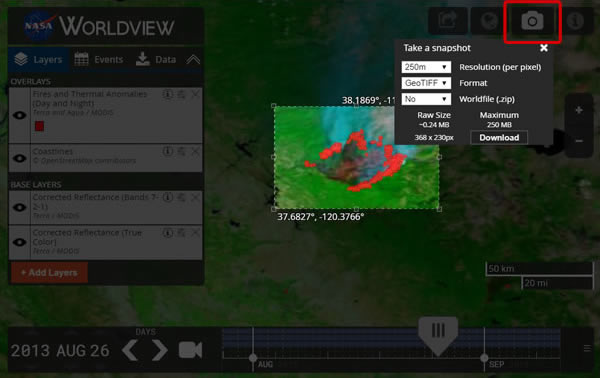
Worldview users can download a “snapshot” of the image in GeoTIFF, JPEG, PNG or KMZ format.

The standard MODIS burned area products [MCD64A1] are not available in near real-time.
Find out more about the MODIS burned area products at: http://modis-fire.umd.edu/ba.html.
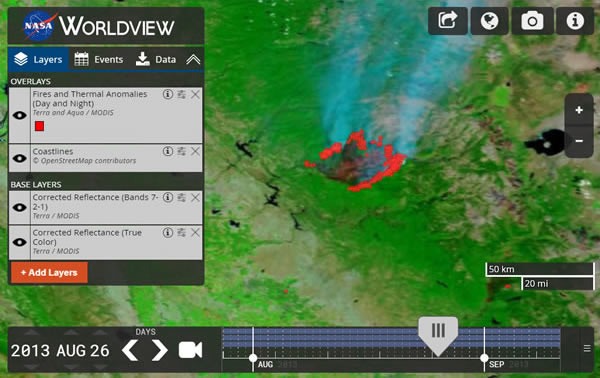
 

Southern California on Aug 26th 2013

Image

Limitations: This “recipe” was put together at the request of users who wanted to do a quick assessment of burned area; it is meant for timely applications that require a quick assessment of burned area. The method relies on visual interpretation and does not provide a robust or systematic means of determining burned areas.
Please note this method does not work in all areas and will not work if the area affected by fire is not big enough, or hot enough to burn and remove the vegetation or alter the vegetation structure. Under the right conditions it can provide a quick assessment of area burned as this tutorial shows.

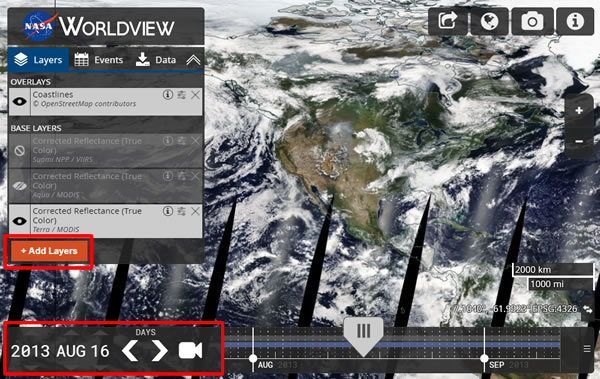
Step 1 - Open Worldview

Image

Step 2 - Set Layers

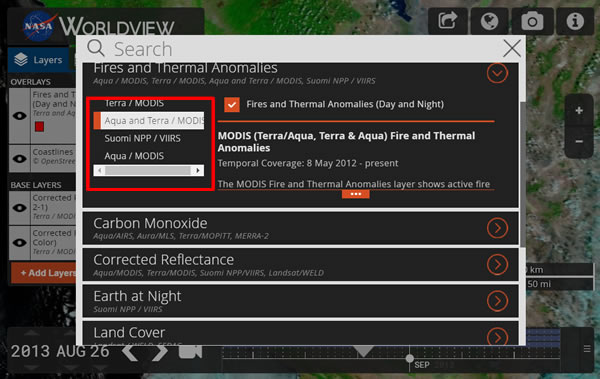
  • In the Main Menu, click on Fires option
  • Expand Fires and Thermal Anomalies
  • On the left side, select Aqua and Terra / MODIS
  • Check Fires and Thermal Anomalies (Day and Night) layer
Image
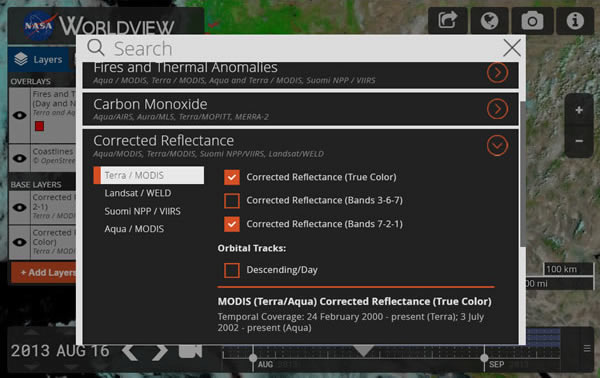
  • Expand Corrected Reflectance
  • On the left side, select Terra / MODIS
  • Check Corrected Reflectance (Bands 7-2-1) layer
  • Keep Corrected Reflectance (True Color) layer selected
Image

Step 3 - Zoom to California near Lake Tahoe area

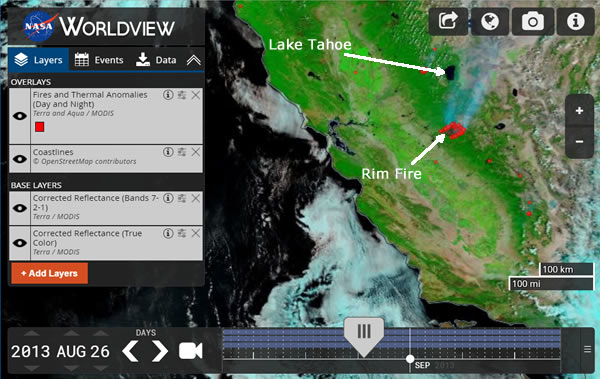
  • Navigate to Lake Tahoe area in California. The approximate coordinates are 37°50’N and 120°00’W
Image
  • Zoom closer to Rim Fire area
  • Change the date back to August 16th 2013 to see the image prior to the start of the Rim fire.
  • Use the Time slider to observe the fire progression from Aug 16th 2013 to Aug 26th 2013
  • * Alternatively, open Worldview using the following permalink http://go.nasa.gov/17sT074
  • Smoke and MODIS hotspots (probably active fires), shown as red points, are visible south of Lake Tahoe
  • The fire affected area is visible in reddish brown color
Image

Step 4 - Download GeoTIFF

  • Click on the camera icon to open 'Take a snapshot' menu
  • Set 'Resolution' to 250m
  • Set 'Format' to GeoTIFF
  • Click on 'Download'
Image

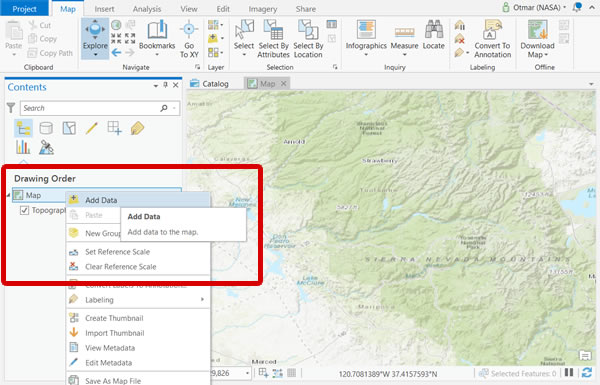
Step 5 - Load GeoTIFF into ArcGIS Pro

  • Launch ArcGIS Pro
  • Create New Map
  • Right+click on 'Map' and select 'Add Data'
Image
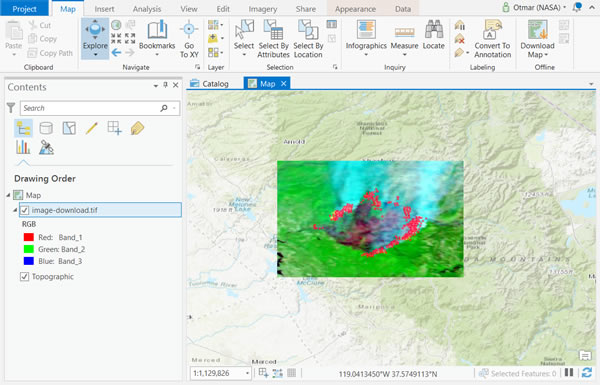
  • Locate and open your downloaded GeoTIFF from Worldview
  • The fire affected area is visible in reddish brown color
Image

Details

Last Updated

April 21, 2026

Published

Aug. 26, 2013