We are in the process of migrating all NASA Earth science data sites into Earthdata from now until end of 2026. Not all NASA Earth science data and resources will appear here until then. Thank you for your patience as we make this transition.
Read about the Web Unification Project
- Launch ArcMap and open Catalog window.
- With the Data Interoperability extension installed, select "Add Interoperability Connection".
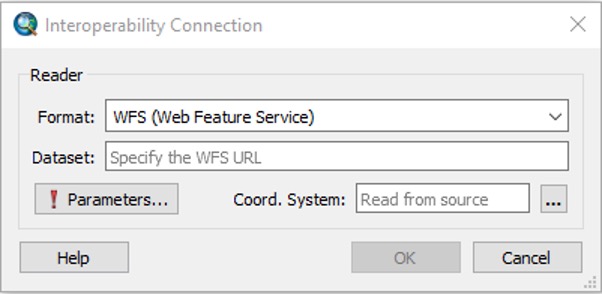
- In the Interoperability Connection window, set the Format to "WFS (Web Feature Service)".
- Click the "Parameters" button.
Image
Step 2 - Establish Connection
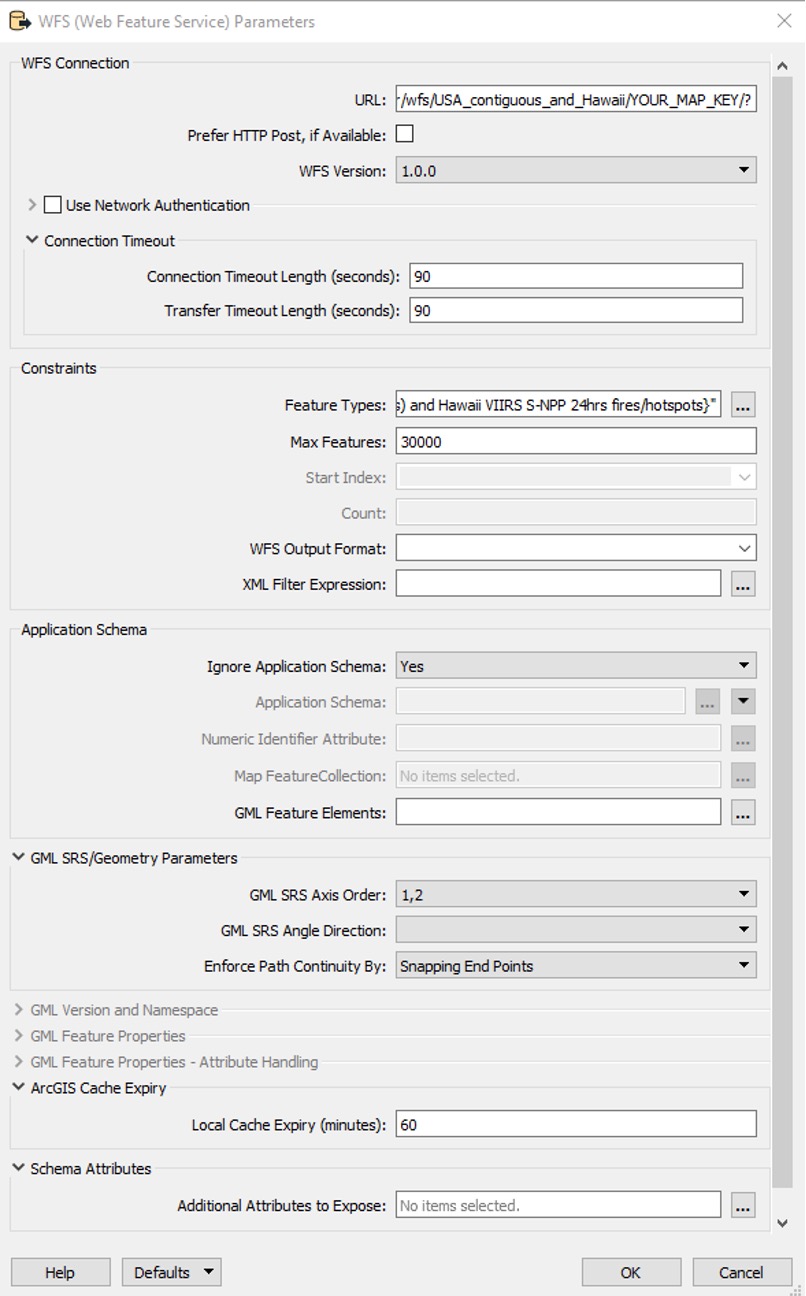
- Configure the parameters to establish the new WFS service connection.
- For the WFS Connection/URL enter connection string for the desired WFS. For example, for the last 7 day WFS services for the continental US and Hawaii use:
https://firms.modaps.eosdis.nasa.gov/mapserver/wfs/USA_contiguous_and_Hawaii/<YOUR_MAP_KEY>/?
whereYOUR_MAP_KEYis the unique code containing both letters and numbers
(make sure '/?' is included at the end of your WFS URL). - For the Constraints/Feature Types, select the ellipsis button and toggle the desired feature type layers.
- For Constraints/Max Features, change the default value of 3,000 to a larger number. It has to be a large enough number to accommodate all the potential features from the selected feature type layers. Otherwise, the features presented by the WFS will be capped to the number of features specified.
- For Application Schema/Ignore Application Schema, set to "Yes".
- For GML SRS/Geometry Parameters/GML SRS Axis Order, set to "1,2".
- Click the OK button.
- At the Interoperability Connection window, click the OK button.
- For the WFS Connection/URL enter connection string for the desired WFS. For example, for the last 7 day WFS services for the continental US and Hawaii use:
Image
Step 3 - View FIRMS Layer
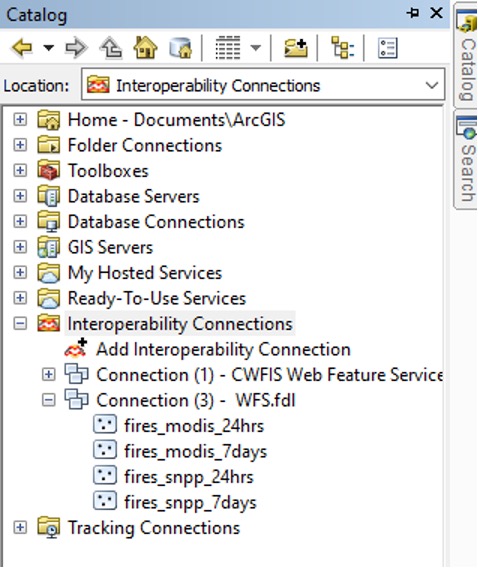
- If the connection was successful, there will be a new WFS service connection entry in your Interoperability Connections in Catalog.
- Rename the WFS service connection if you like.
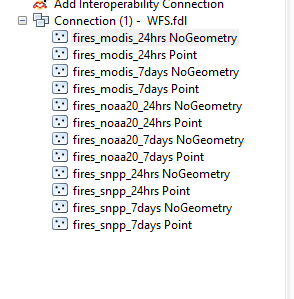
- Open the tree structure under the new WFS service connection and the feature type layers identified when configuring the parameters for this service connection will be visible (e.g.
fires_modis_24hrs, fires_modis_7days, etc.).
Image
Step 4 - Draw FIRMS Layer
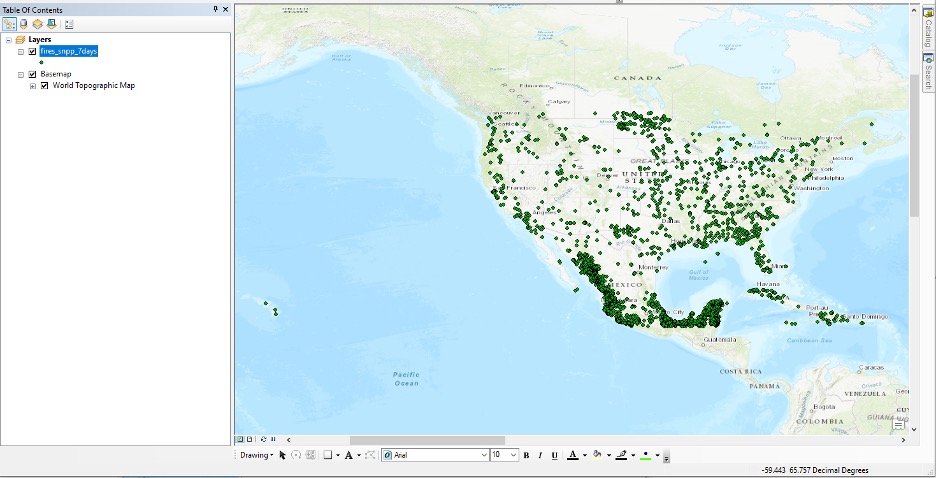
- Drag the layer of interest into the desired ArcMap map window.
- After the features in the layer are indexed, it will be added to your window and draw.
- Position the layer accordingly in the draw order so it is visible with other layers.
Image
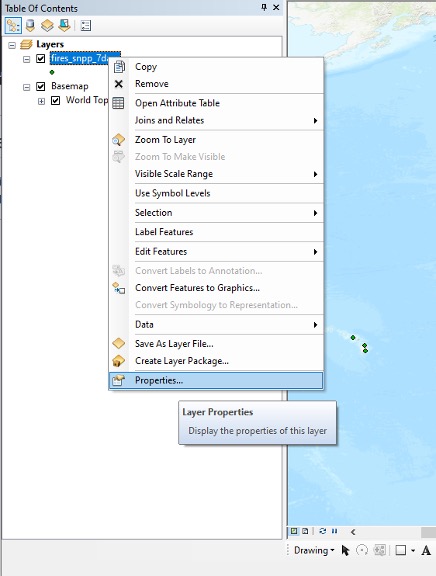
Step 5 - Open Layer Properties Window
- Right click on the FIRMS layer.
- Click on Properties.
Image
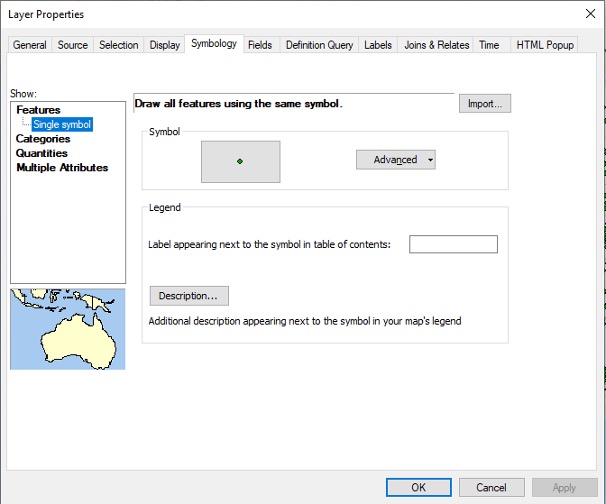
Step 6 - Set Layer Parameters
- Select the Symbology tab.
- Configure the symbology as desired. Active fire detections can all be symbolized using a single symbol or they can be classified and symbolized uniquely or as graduated symbols based on feature layer attribute values.
- Click OK button to assign the desired symbology scheme.
Image
Image
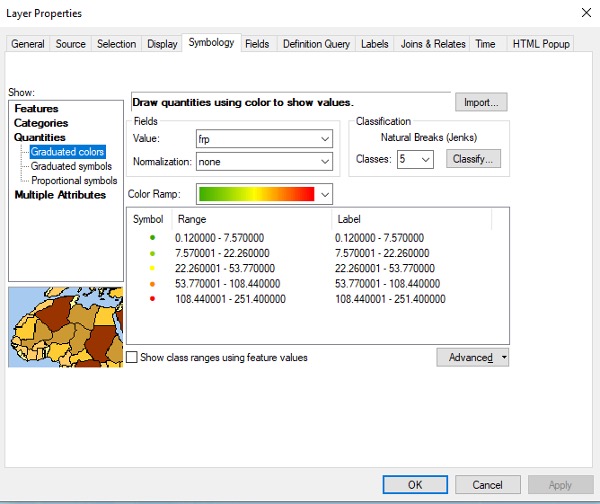
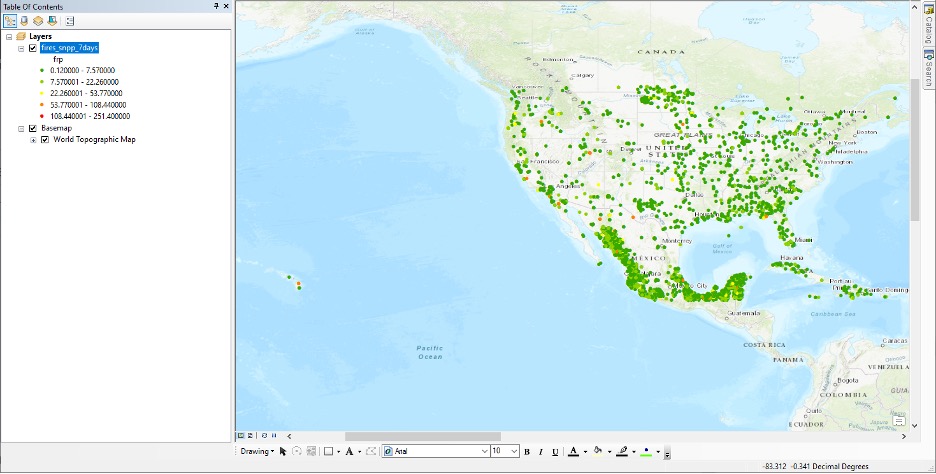
Step 7 - View Results
- The map will display using your custom symbology.
Image
Note About Connection Parameters
ArcMap (v10.5.1)
- No need to swap coordinates, no need to ignore the schema
- Works with WFS v1.0.0, WFS v1.1.0 and WFS v2.0.0
ArcMap (v10.7.1)
- No need to swap coordinates, no need to ignore the schema
- Works with WFS v1.0.0, WFS v1.1.0
- When WFS v1.1.0 is used, ArcMap returns layers with and without geometry (see below)
- NOT working with WFS v2.0.0
Image
Having problems ...
Smart Card users:
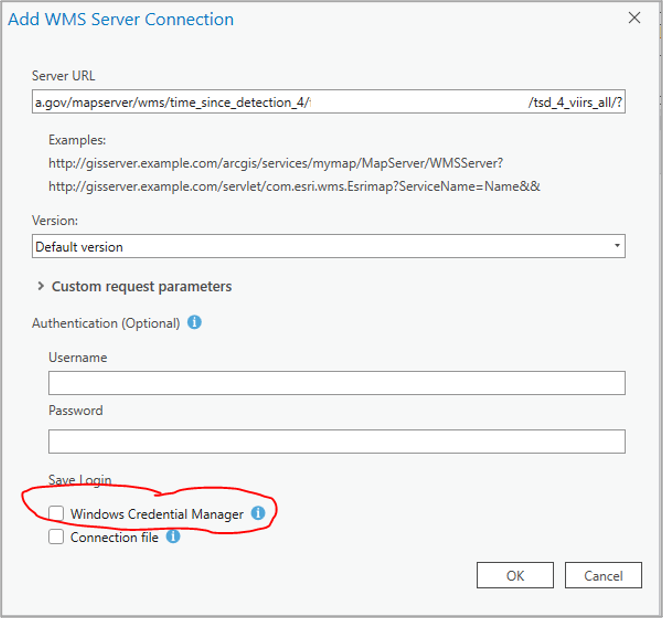
- When connecting to a WMS or WFS service, the Windows Credential Manager may be toggled on by default.
- Toggle it off.
Image
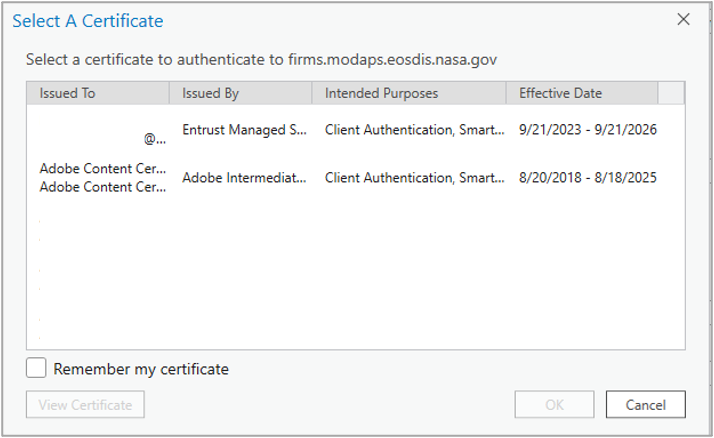
- When prompted to select a PIV certificate in the subsequent step, do not select one and select 'Cancel'.
Image
Details
Last Updated
Published
Sept. 28, 2021