Add Data into QGIS

There are a variety of Geographic Information Systems (GIS) applications available to users. The following examples show screenshots from QGIS, a free and open-source GIS application. Other GIS applications have similar options for adding layers.  

Add Basemaps Into QGIS

1. Add a basemap using the QuickMapServices Plugin.
Image

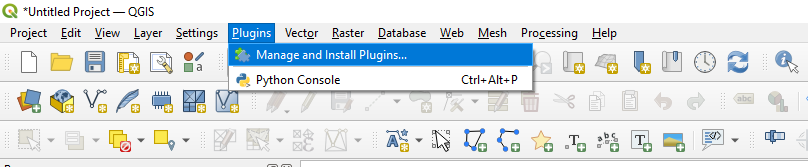
      a. In the top toolbar, click “Plugins,” then “Manage and Install Plugins…”

Image

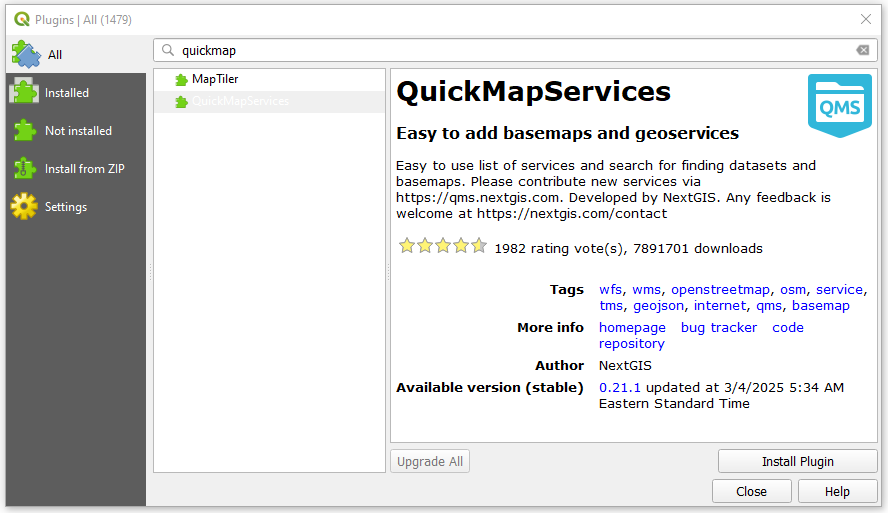
      b. Within the Plugins Window that pops up, search for “QuickMapServices.” After selecting that plugin, click “Install.”

Image

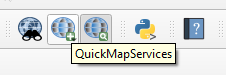
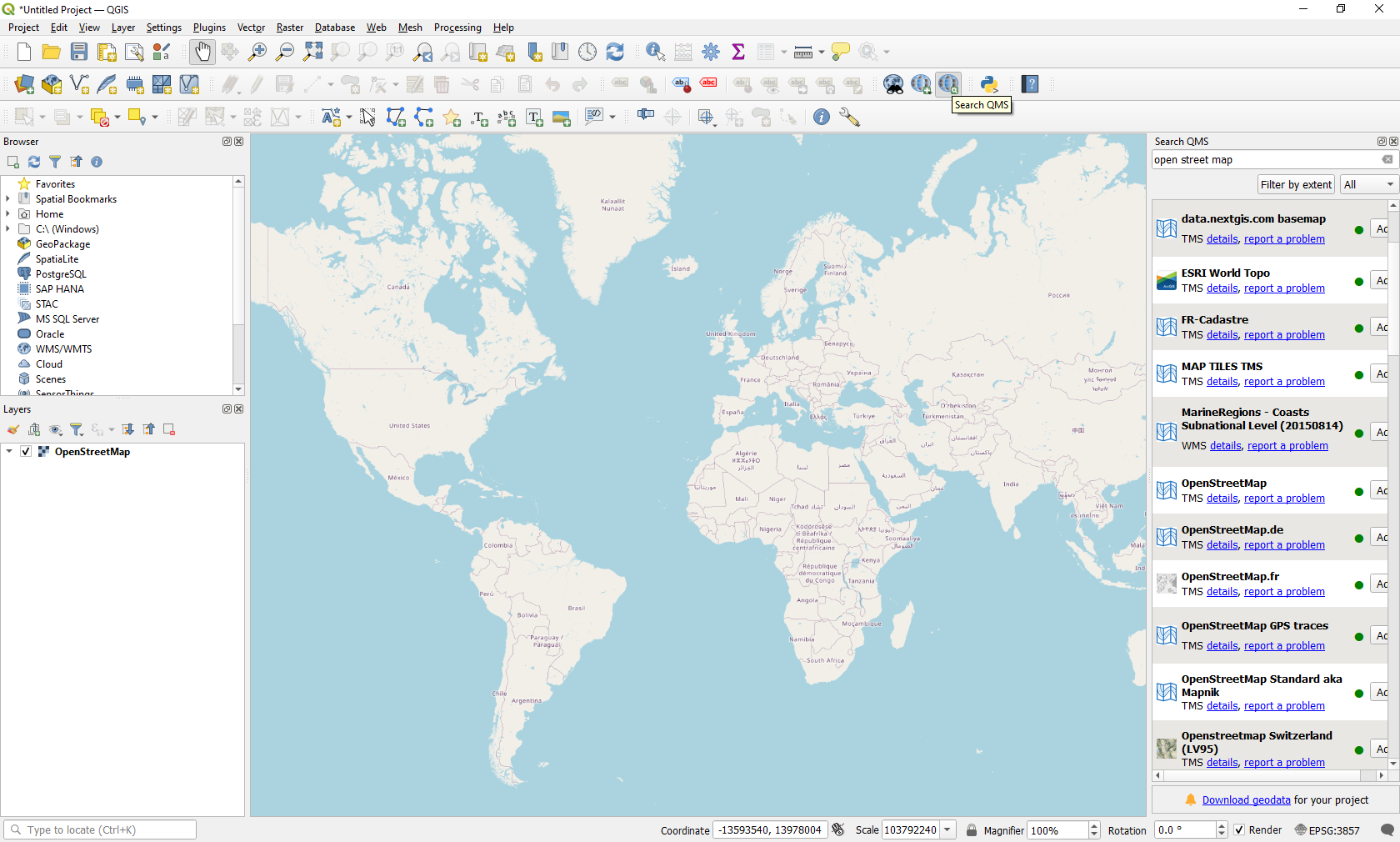
      c. Your toolbar will now contain a few QuickMapServices icons. You can use the search icon to find and enable basemaps to add to your project. 

Image

2. Add a basemap using XYZ Tiles 

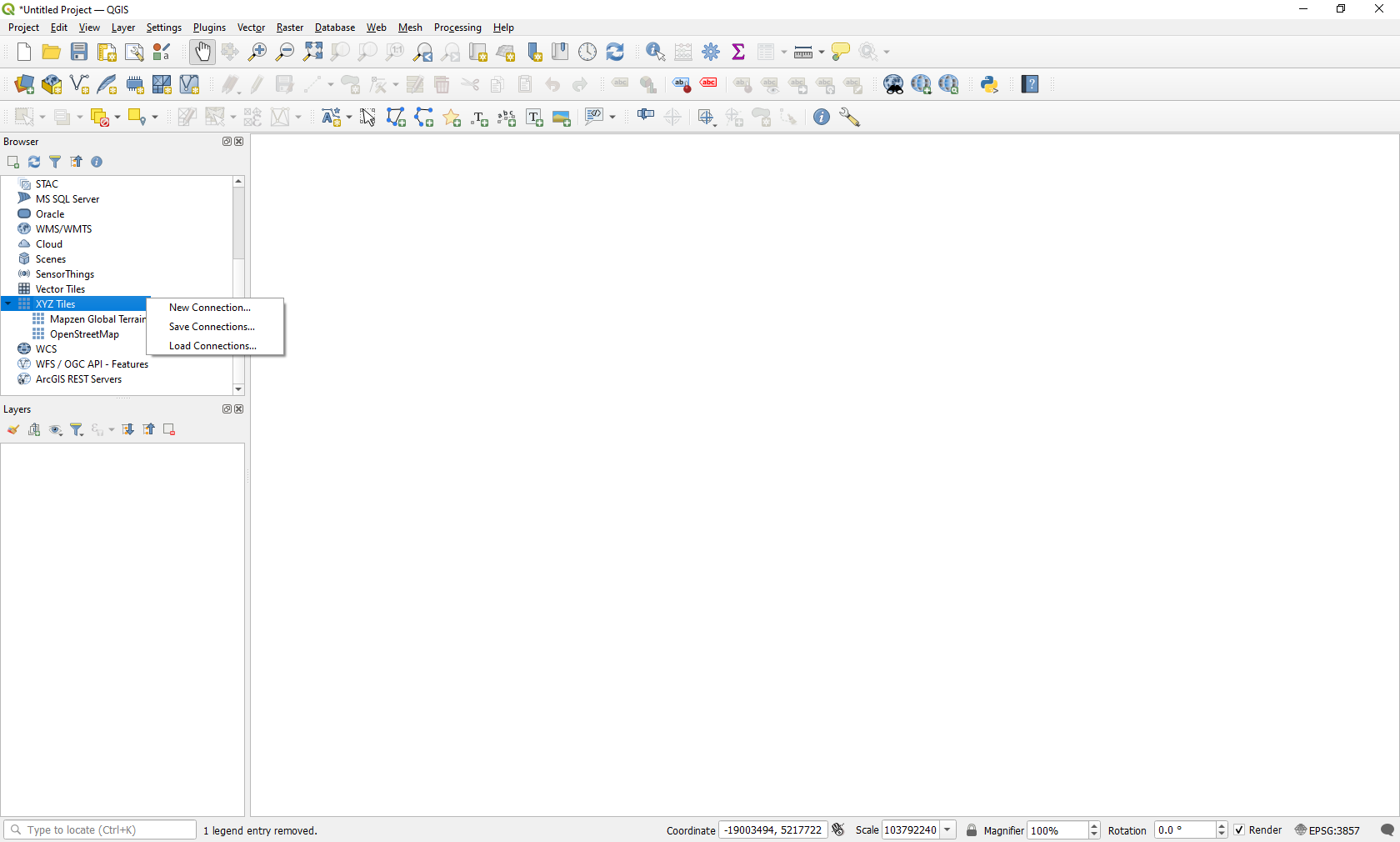
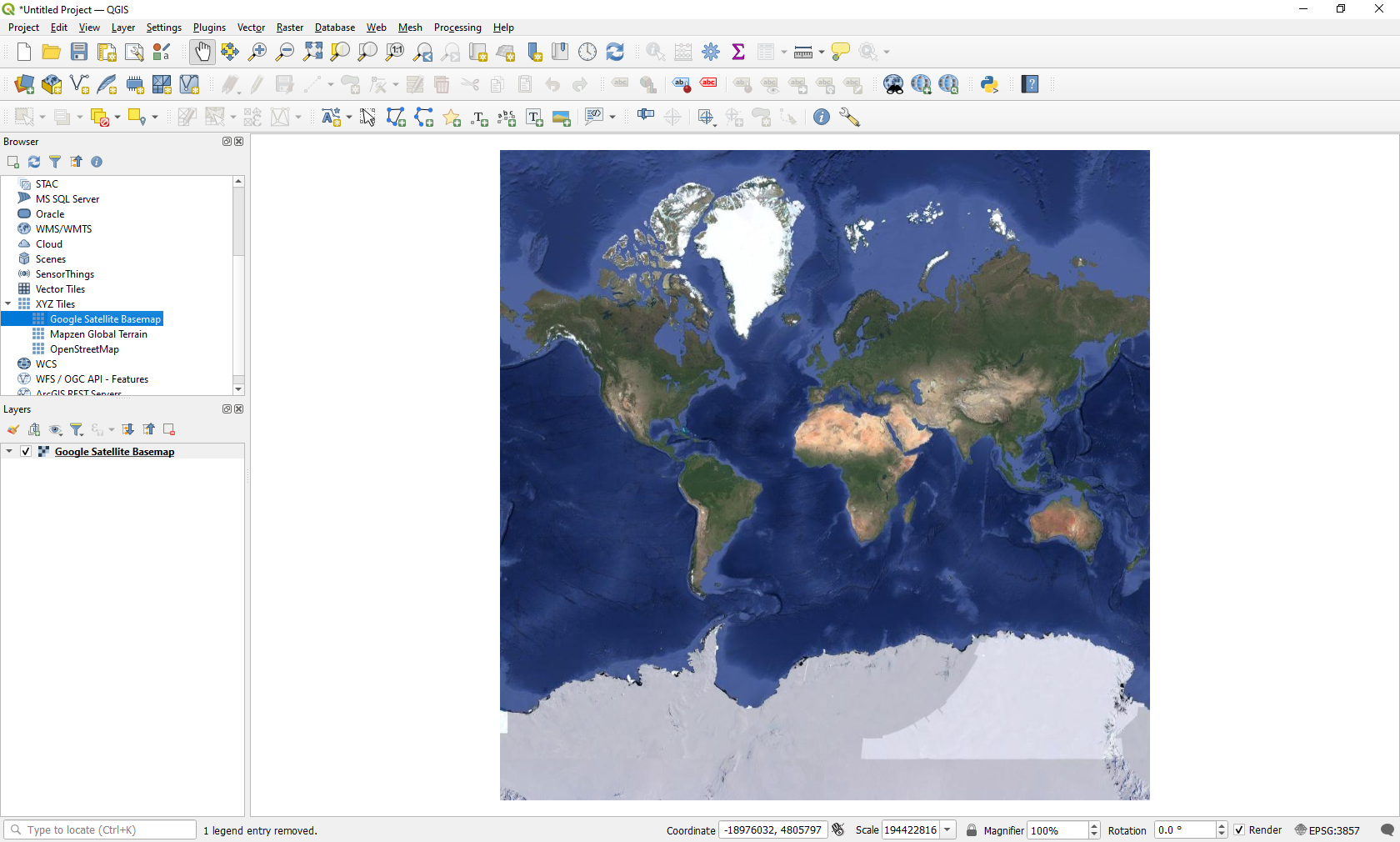
       a. In the “Browser” window docketed to the left-hand side of your QGIS project window, scroll to “XYZ Tiles.” Double click XYZ Tiles to expand the menu and see which basemaps are available. You can then drag and drop your preferred basemap into your project’s layer list.  

       b. If you would like to add a new basemap to your project, right-click XYZ Tiles and select “New Connection…”

Image

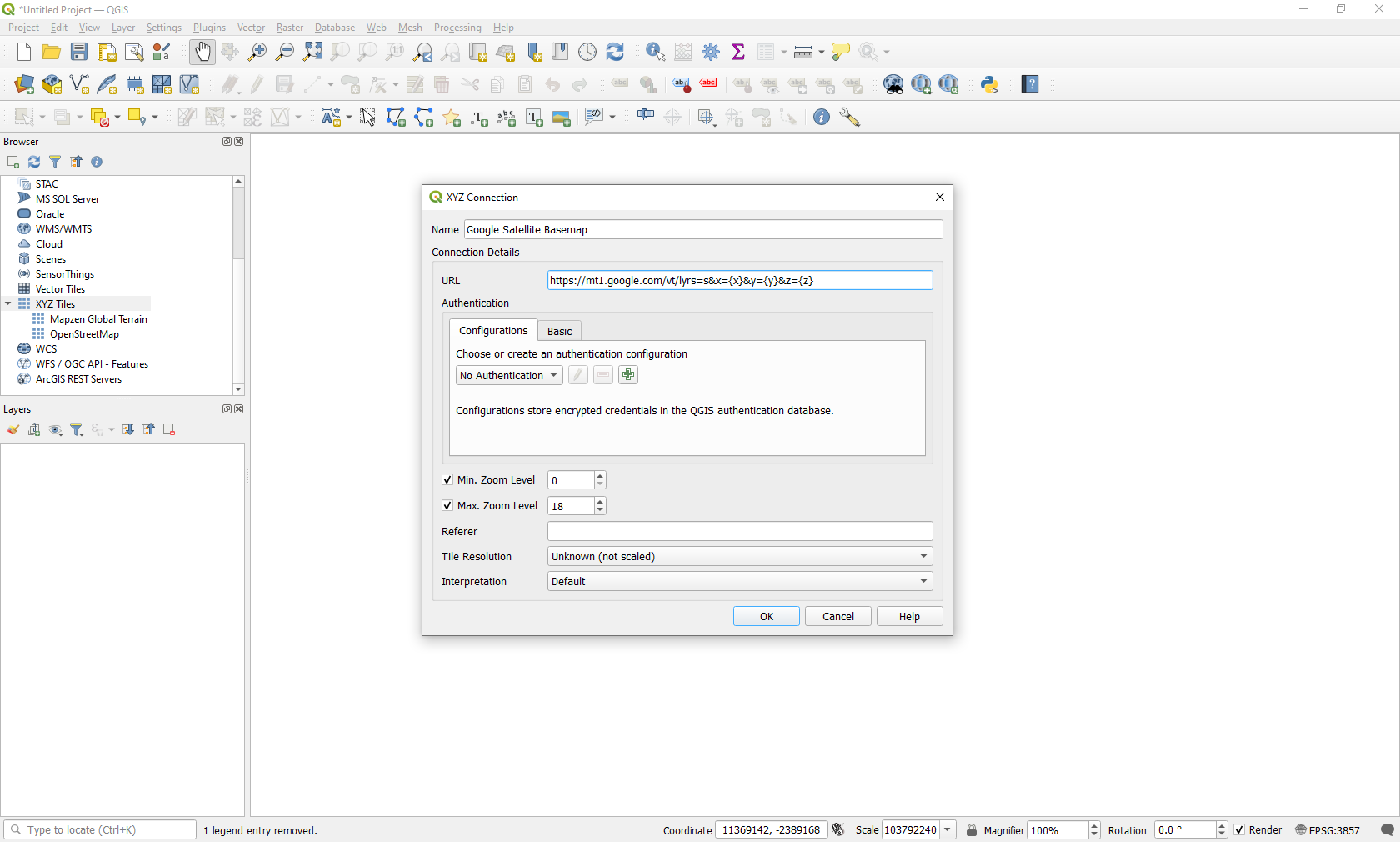
      c. Within the window that appears, enter a name for the basemap you are going to add (e.g., Google Satellite Basemap). 

      d. Then, enter a map service URL, such as “https://mt1.google.com/vt/lyrs=s&x={x}&y={y}&z={z}” for a Google basemap. 

Image
Image

Add a Downloaded Vector Layer in QGIS 

  1. First, download your vector data. In this tutorial, we will be using data from NASA’s Surface Water and Ocean Topography (SWOT) mission. You can follow along and download the data here: SWOT Simulated Level 2 North America Continent High Rate Lake Vectors Product Version 1.0.
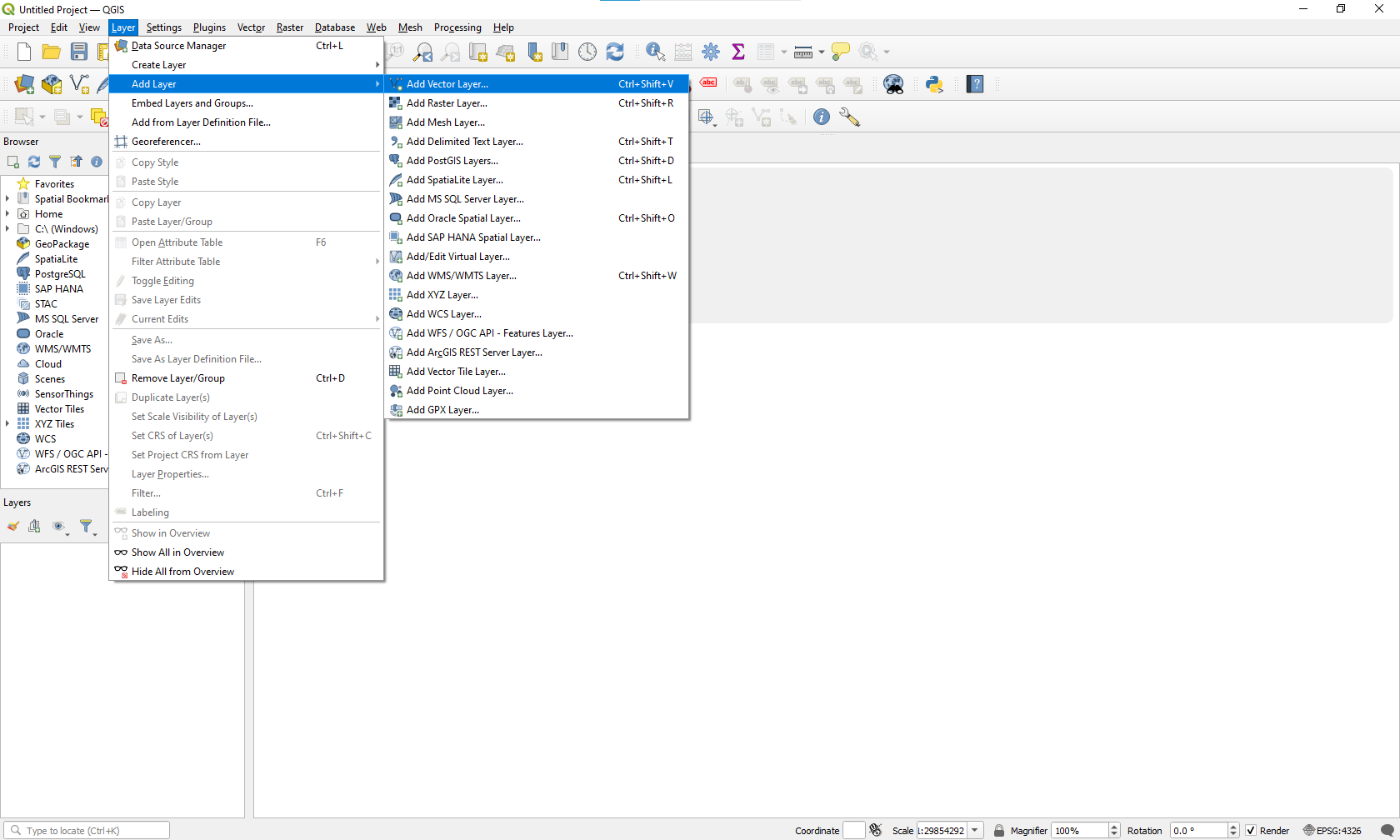
  2. Under “Layer” in the QGIS toolbar, select “Add Layer,” then select "Add Vector Layer."  
Image

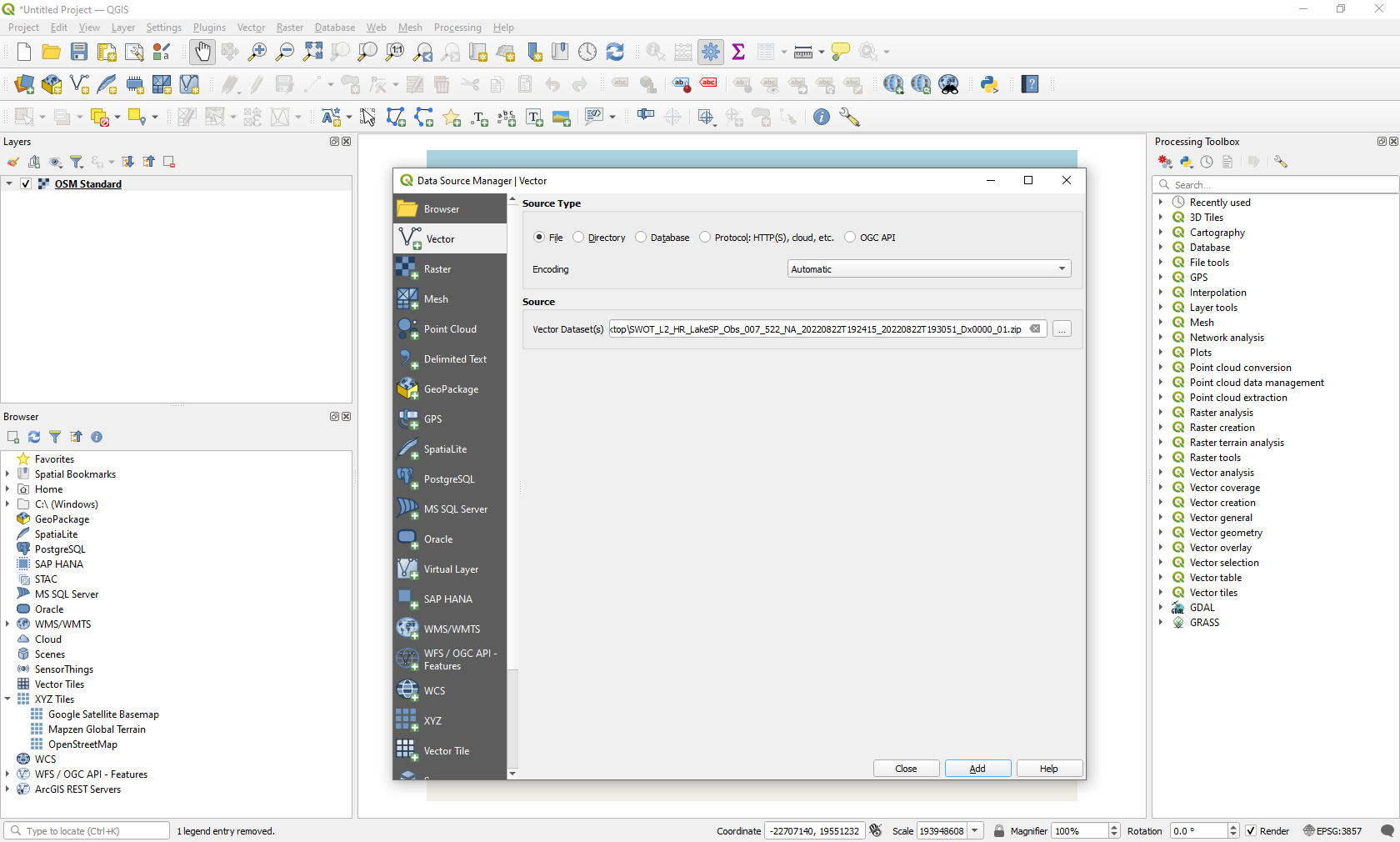
    3. Using the three dots button to the right of the “Source” box, navigate to the directory location where your data is stored and click your data file (Note: you can select the entire zip file, then select specific layers to add).  

Image

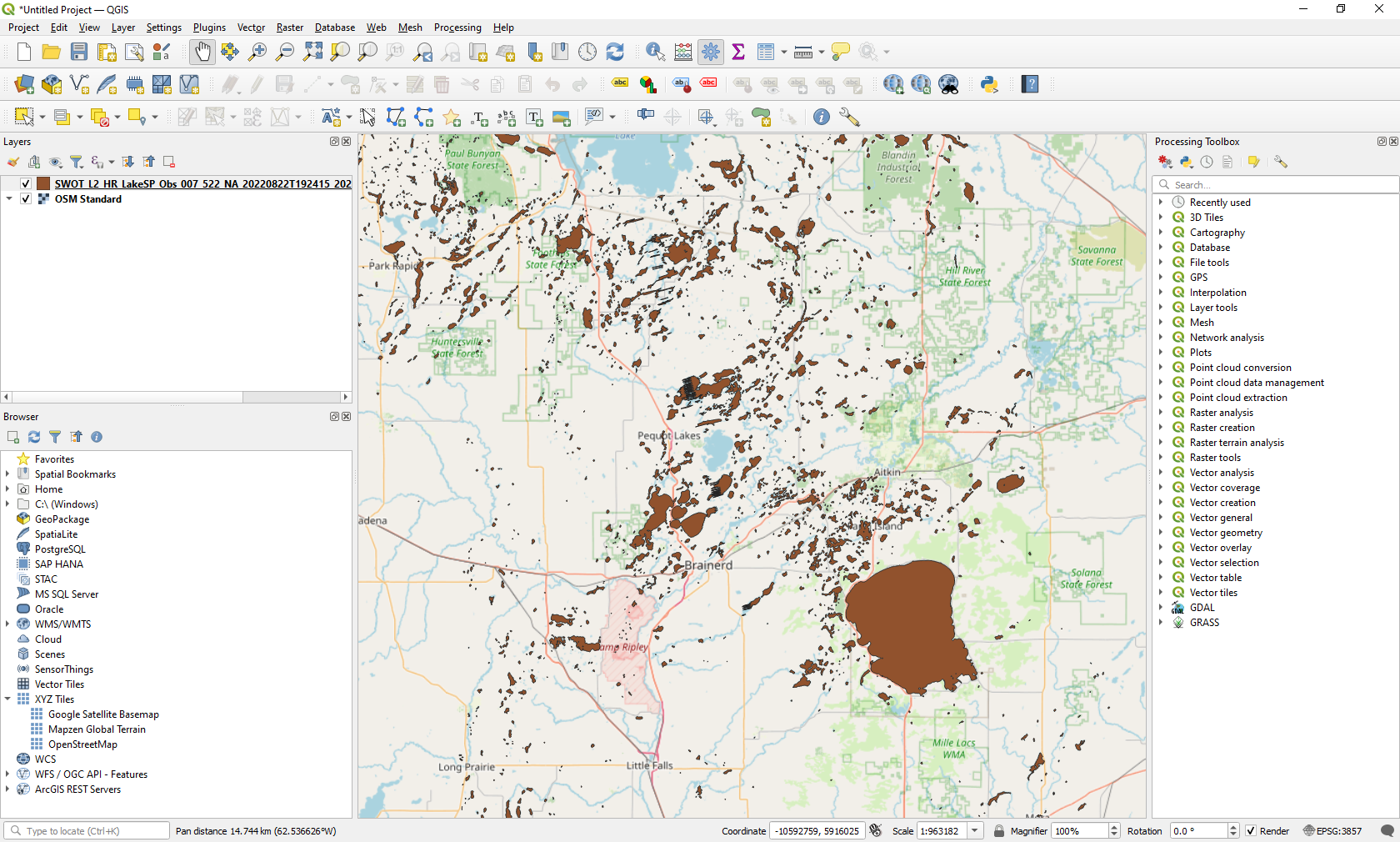
    4. At this point, you can visualize your data.   

Image

Add a Downloaded Raster Layer in QGIS 

  1. First, download the target raster TIF, HDF, or NetCDF data. In this example, we will be adding surface water extent from the Observational Products for End-Users from Remote Sensing Analysis (OPERA) project, downloaded from the NASA tool Earthdata Search. You can download the same/similar data via Earthdata Search: OPERA Dynamic Surface Water Extent from Harmonized Landsat Sentinel-2 product (Version 1)
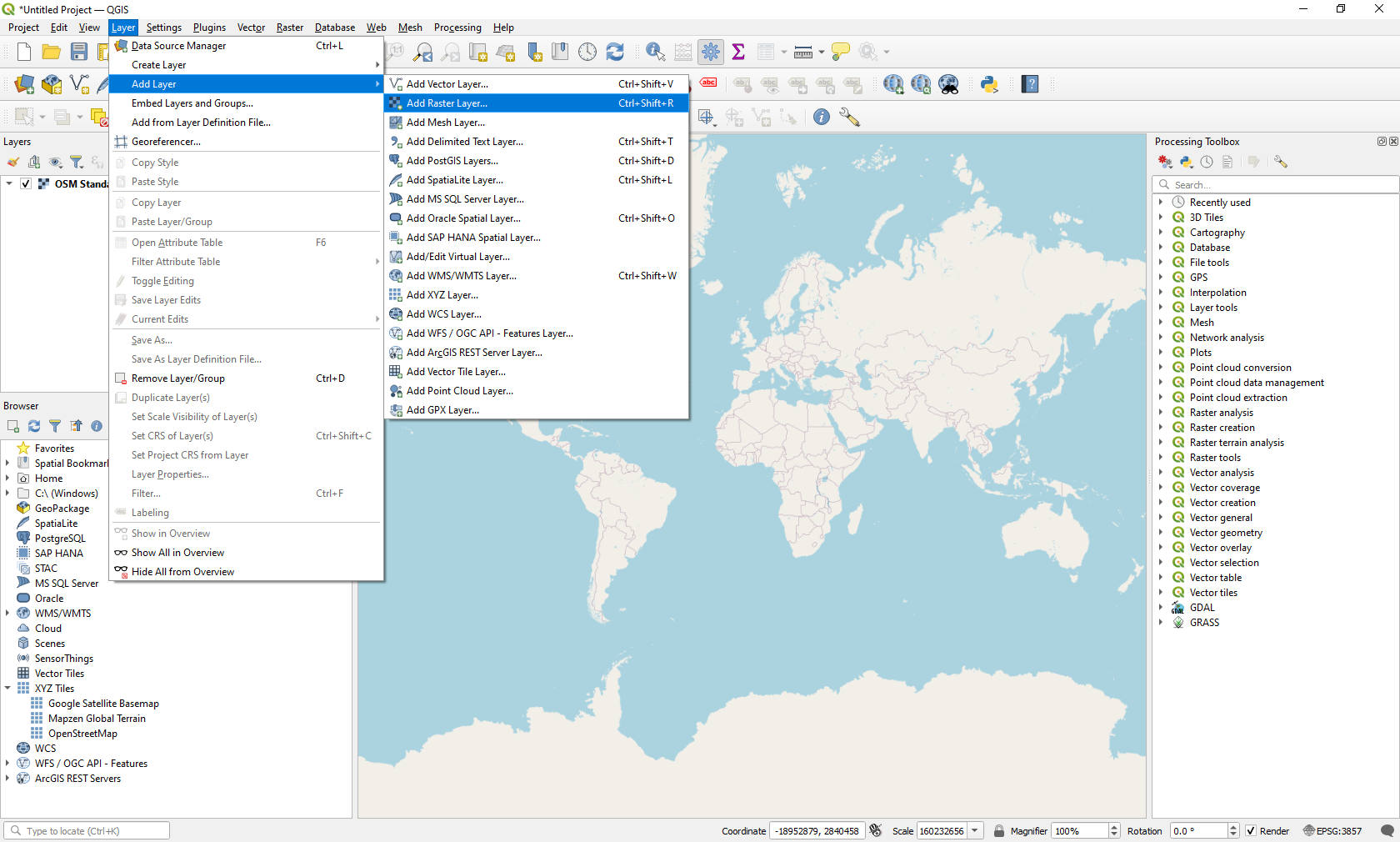
  2. Under “Layer” in the QGIS toolbar, select “Add Layer,” then select "Add Raster Layer."  
Image

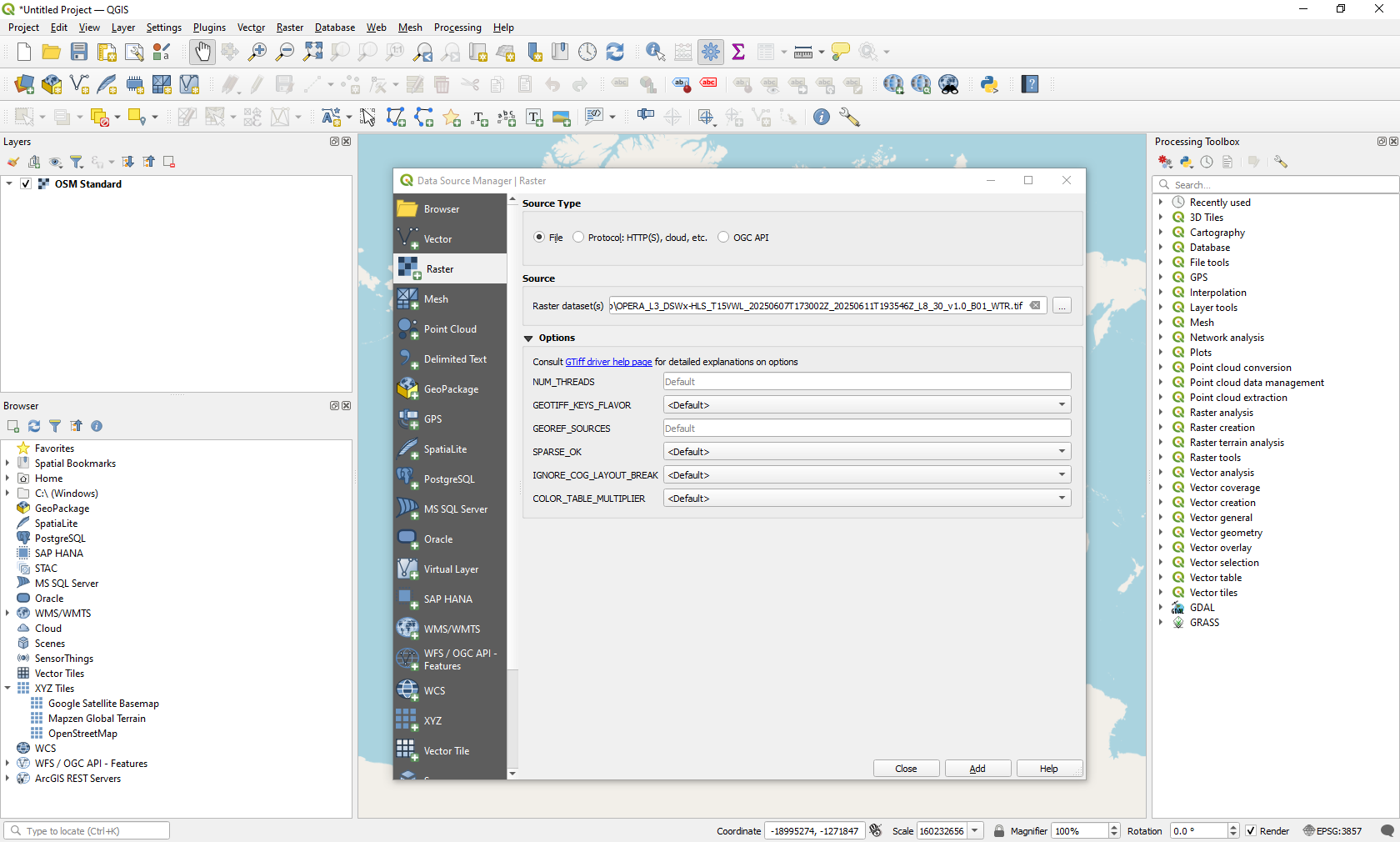
  3. Using the three dots button to the right of the “Source” box, navigate to the directory location where your data is stored and click your data file. 

  • You may need to modify the projection or symbology, both of which are in the layer properties. Layer properties can be accessed by double-clicking on the layer or by selecting "layer/layer properties." "Layer Properties" is the window title within QGIS. 
  • Here, you can also alter band combinations, adjust brightness, and opt for different color schemes.  
Image

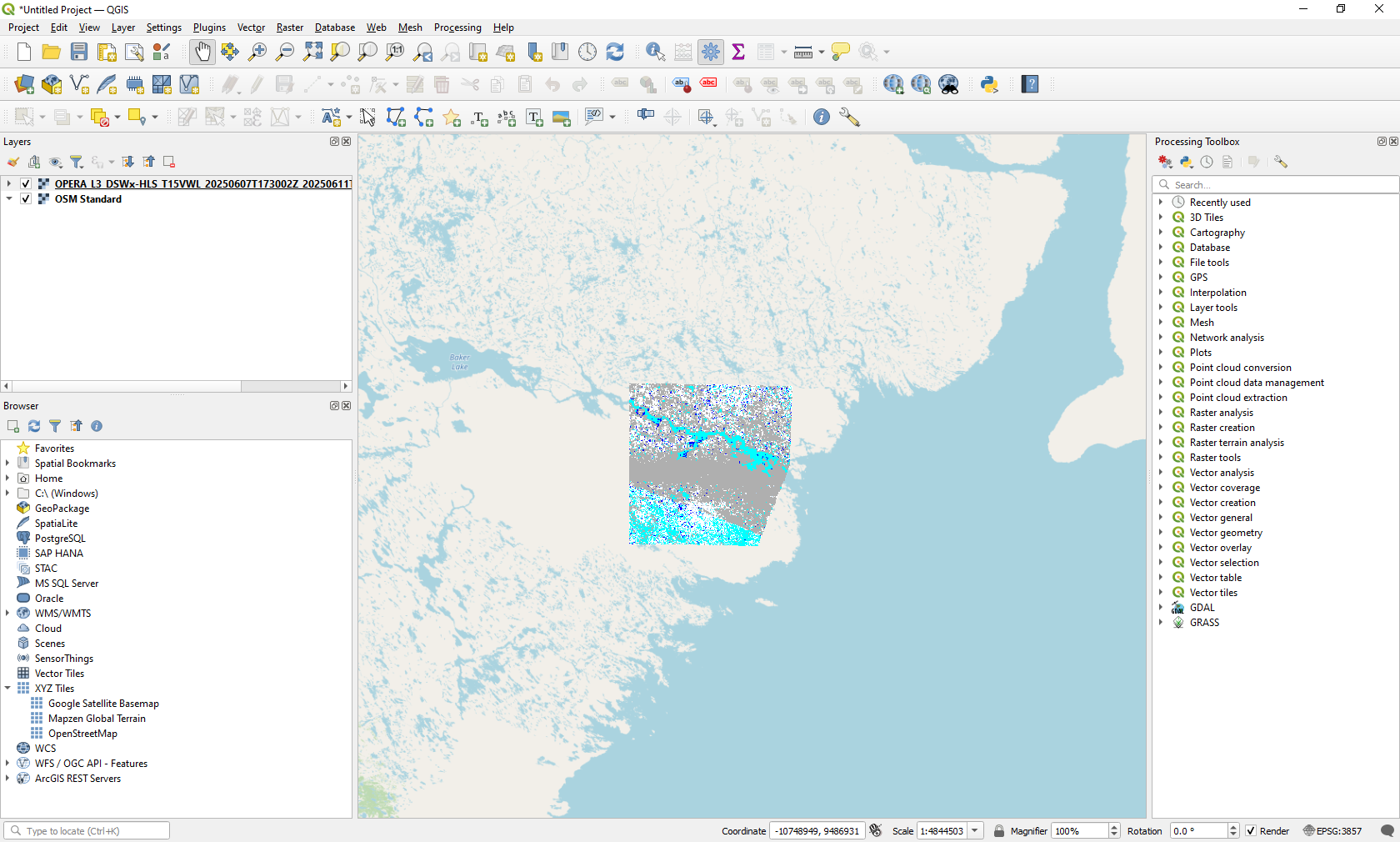
    4. At this point, you can visualize your data. 

Image

Add Data into Esri ArcGIS Pro

There are a variety of GIS applications available to users. The following examples show screenshots from Esri ArcGIS Pro. Other GIS applications have similar options for adding layers. 

  1. First, download the target raster TIF, HDF, or NetCDF data. In this example, we will be adding precipitation data from the GPM Integrated Multi-satellitE Retrievals for GPM (IMERG) mission, downloaded from the NASA tool Earthdata Search. You can download the same/similar data via Earthdata Search: GPM IMERG Final Precipitation L3 1 month 0.1 degree x 0.1 degree
  2. After downloading the files, you can access the data using two different methods.  

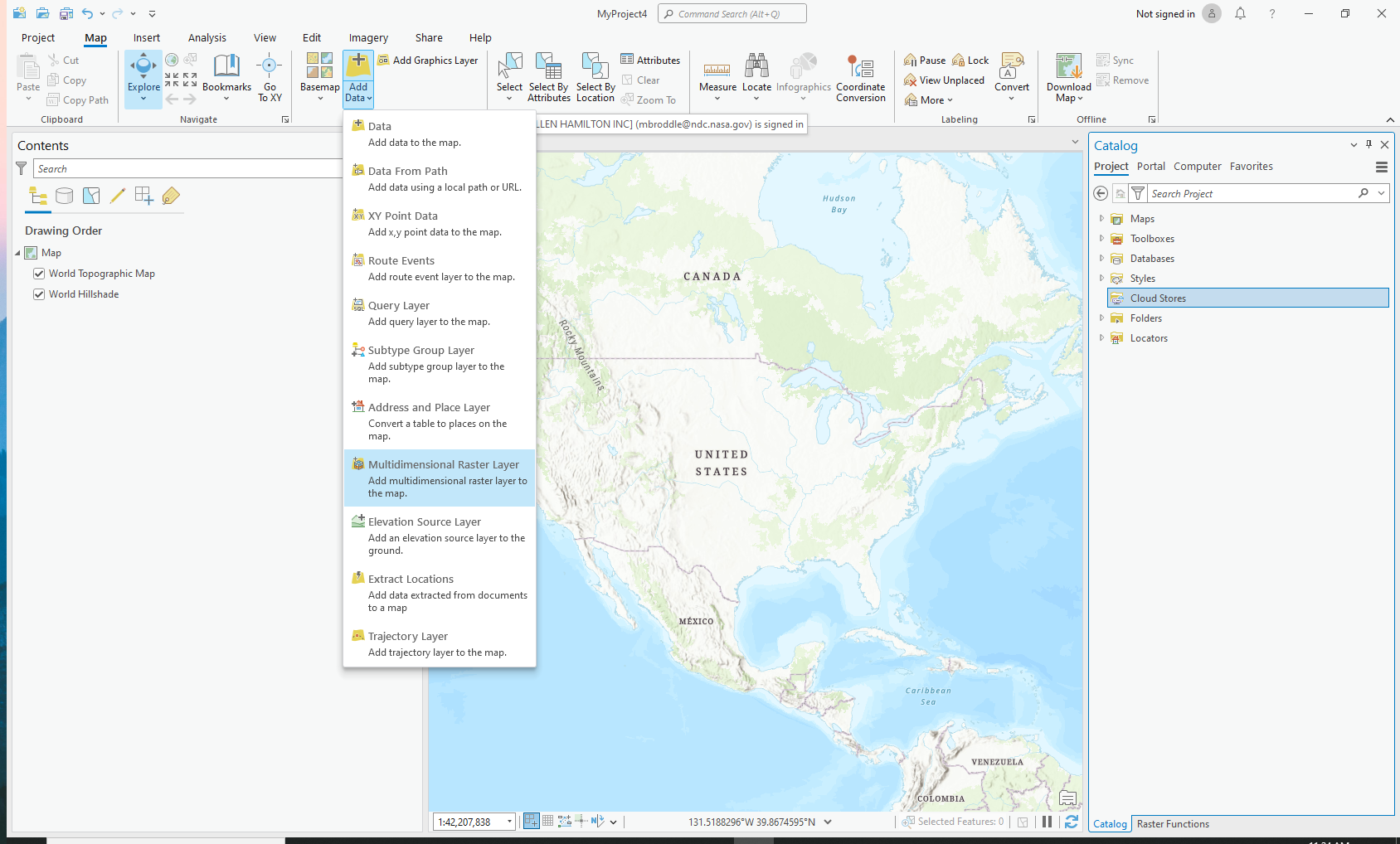
       a. The first is by clicking on the “Add Data” dropdown under the “Map” menu. Select the “Multidimensional Raster Layer” option.  

Image

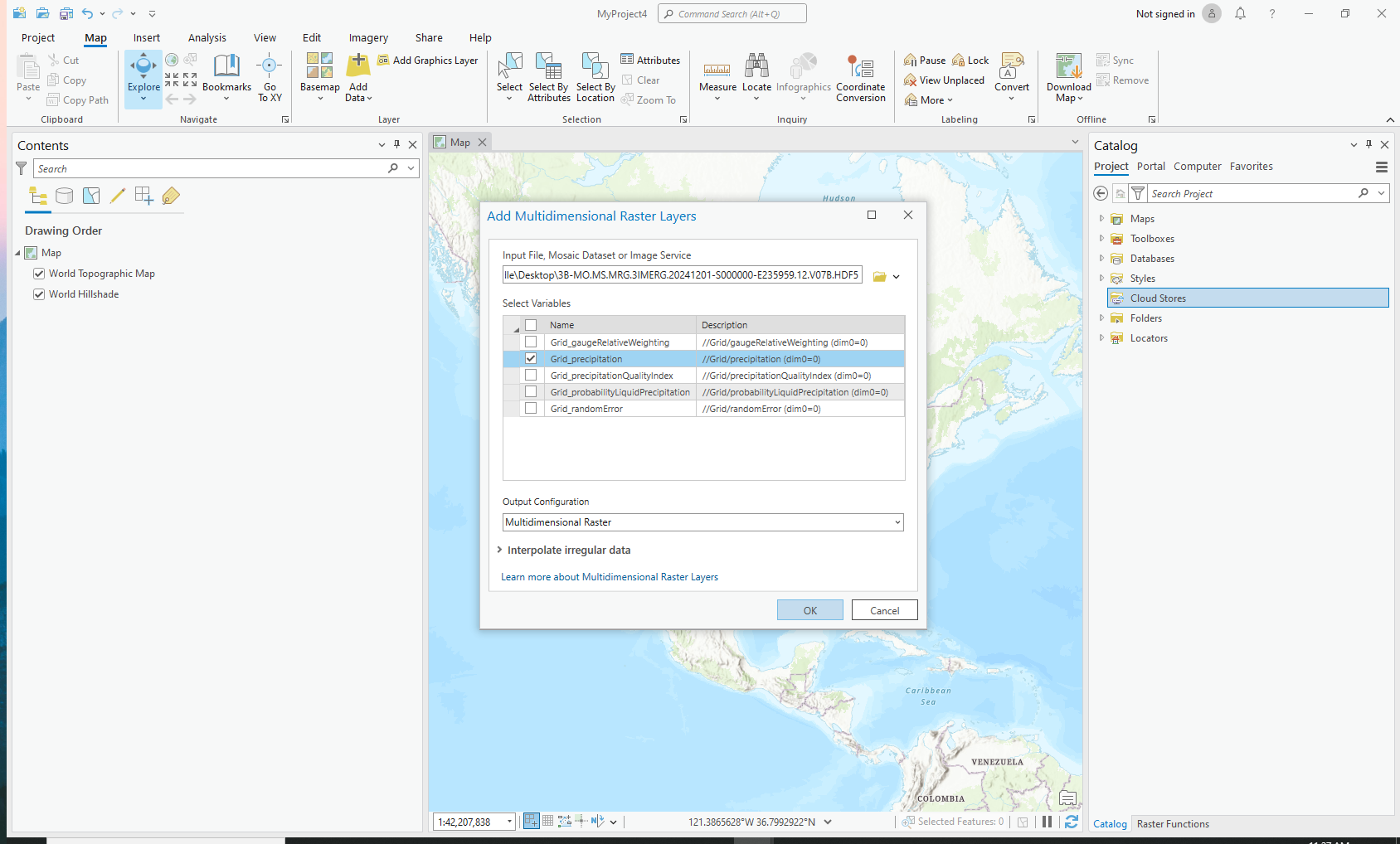
       b. Navigate to your downloaded data. Then, select which variables you would like to add to your map. Click “OK.” 

Image

       c. The second is to use the “Make Multidimensional Raster Layer” geoprocessing tool. The sample below shows an HDF file downloaded from the IMERG download directory. 

Image

Details

Last Updated

Nov. 17, 2025

Published

Nov. 17, 2025