This data recipe guides users in creating a time-enabled multidimensional mosaic dataset using NetCDF files within the Geographic Information Systems (GIS) desktop program ArcGIS Pro. It also demonstrates how to combine multiple NetCDF files into a mosaic, and covers how to perform data prep, add data to the mosaic, build multidimensional info, and set mosaic properties. Mosaic datasets can be used in data analysis and visualizations.

The data used in this tutorial comes from NASA’s Modern-Era Retrospective analysis for Research and Applications, Version 2 (MERRA-2). If you’d like to follow along, you can download these data by clicking the following links:  

If you’d like to watch a video tutorial for this content, you can find it at NASA Earthdata’s YouTube channel.  

Note: An Earthdata Login account is needed to download these data. You can visit this tutorial to learn how to create an account

1. Prepare Your Data With Panoply 

Panoply is a free software that plots geo-referenced data from file types such as NetCDF, HDF, or GRIB. Download Panoply.

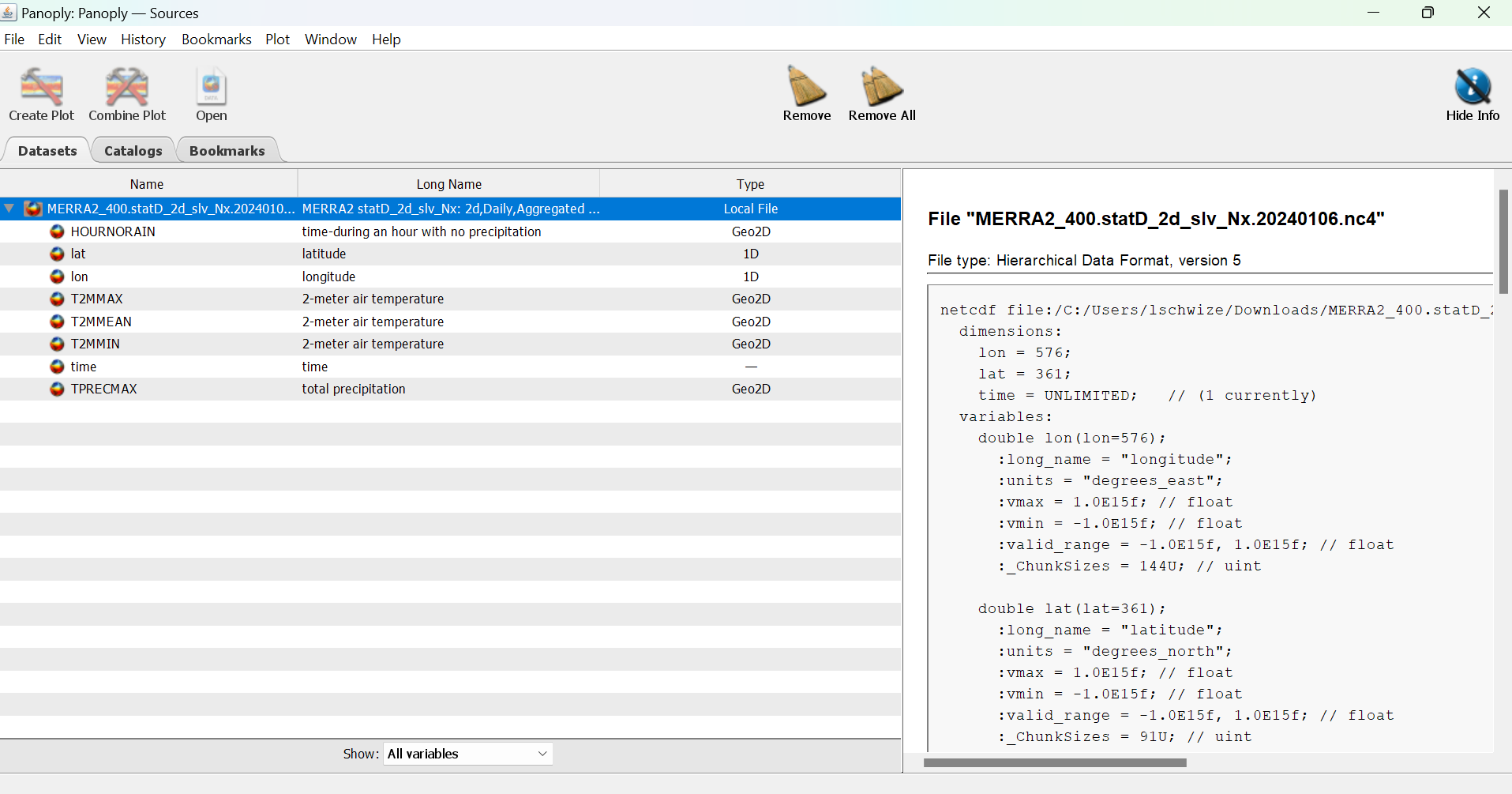
  1. Inspect the NetCDF Files: Ensure the files contain spatial data compatible with ArcGIS Pro, such as variables with latitude, longitude, and time dimensions.
  2. Consistent Variables: Ensure all NetCDF files contain the same variable(s) you want to include in the mosaic dataset. 
Image
Image Caption

Example data in Panoply to check for Lat, Lon, Time

2. Create a File Geodatabase 

  1. Open ArcGIS Pro and create a new project or open an existing one.
  2. In the Catalog Pane:
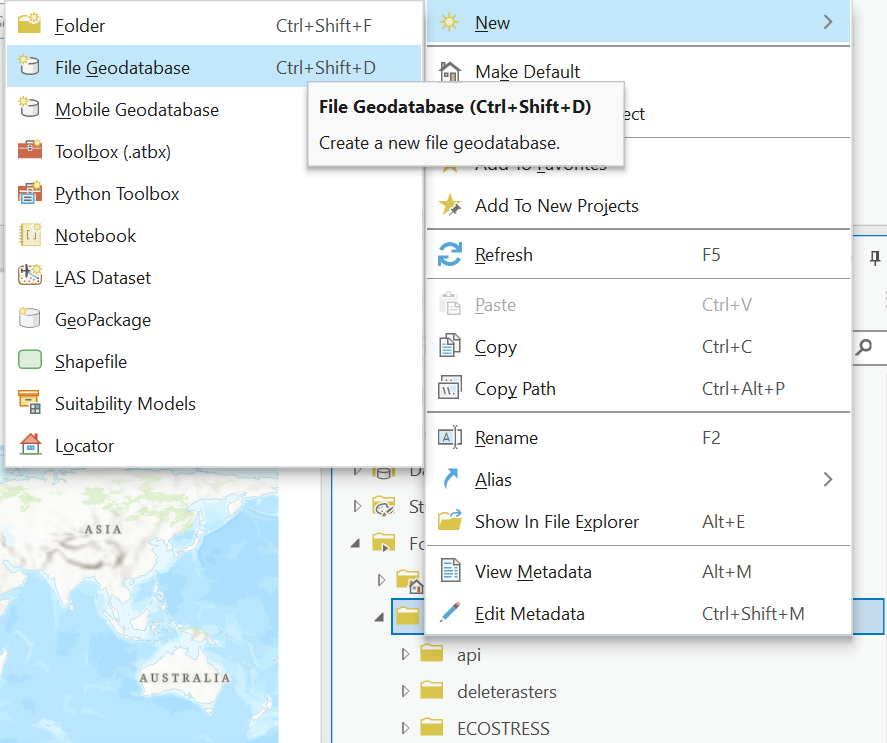
    1. Right-click on your project folder and choose New > File Geodatabase.
    2. Name your geodatabase. 
Image
Image Caption

Screenshot displaying how to create a new file geodatabase in ArcGIS Pro 

3. Create a Mosaic Dataset 

  1. In the Catalog Pane:
    1. Right-click on the geodatabase you just created.
    2. Choose New > Mosaic Dataset.
  2. In the Create Mosaic Dataset tool:
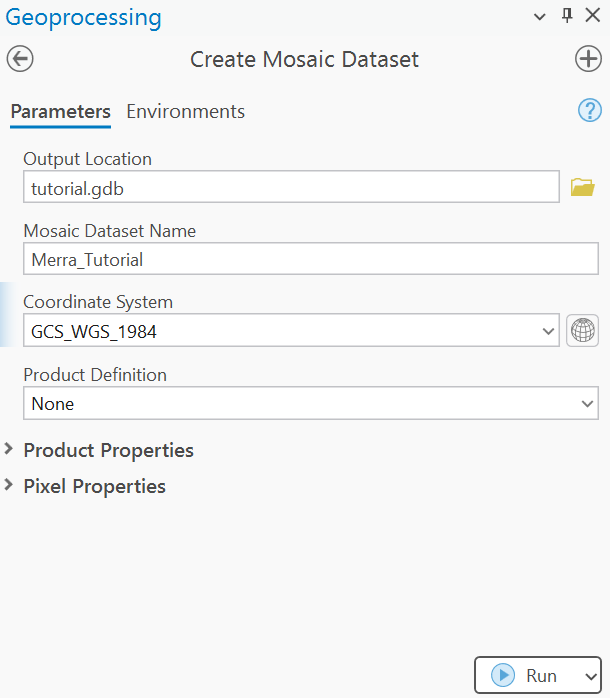
    1. Output Location: Should be the new geodatabase.
    2. Mosaic Dataset Name: Provide a name for the mosaic dataset.
    3. Coordinate System: Set the spatial reference system appropriate for your data (e.g., WGS 1984, EPSG:4326).
  3. Click Run to create the mosaic dataset.
  4. The mosaic dataset should now be nested within the geodatabase, though it will be initially empty.
Image
Image Caption

Screenshot of suggested settings for the "Create Mosaic Dataset" geoprocessing tool in ArcGIS Pro

4. Add NetCDF Files to the Mosaic Dataset 

  1. Open the Add Rasters to Mosaic Dataset tool:
    1. Go to the Analysis tab > Tools > Search for Add Rasters to Mosaic Dataset.
  2. Set the following parameters:
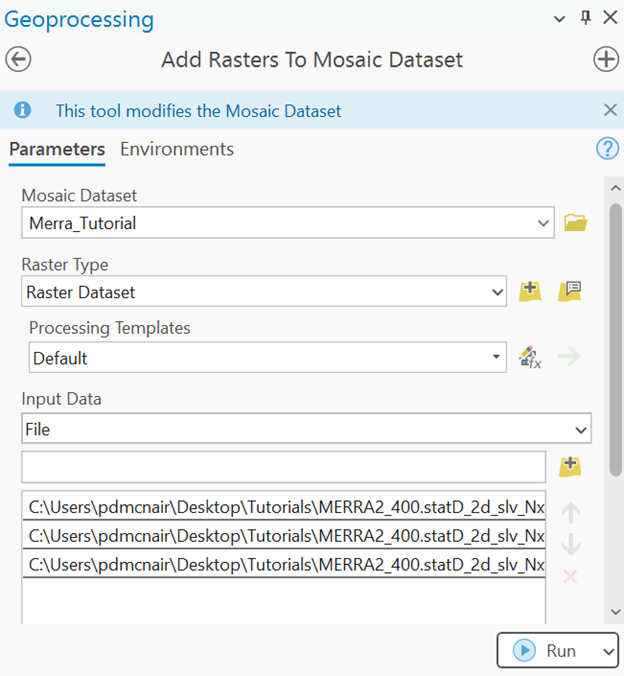
    1. Input Mosaic Dataset: Select the mosaic dataset you created.
    2. Raster Type: Select NetCDF from the dropdown menu.
    3. Processing Templates: Leave as “Default.”
    4. Input Data: Select or browse to the file or folder containing your NetCDF files.
    5. Under Advanced Data Input Options: Include Subdirectories, check this if your NetCDF files are organized in subfolders.
    6. Enable pixel cache for faster rendering.
    7. Calculate Statistics.
  3. Click Run to add the NetCDF files.
Image
Image Caption

Screenshot of suggested settings for the "Add Rasters to Mosaic Dataset" geoprocessing tool in ArcGIS Pro

5. Configure the Mosaic Dataset (Optional) 

After adding the NetCDF files, configure the mosaic dataset to optimize performance and visualization: 

  1. Build Overviews (Optional):
    1. Under the Analysis tab à Tools: Open the Build Overviews tool and set the input as your mosaic dataset.
    2. Overviews improve performance when zooming in/out.
    3. Run the tool.
  2. Build Footprints (Optional):
    1. Use the Build Footprints tool to refine the extent of each raster in the mosaic dataset.
  3. Set NoData Values (Optional):
    1. Right-click on the mosaic dataset in the Catalog Pane and select Properties.
    2. In the Mosaic Dataset Properties window, set NoData values for consistent rendering. 

6. Visualize and Analyze the Mosaic Dataset 

  1. Drag the mosaic dataset into your map.
  2. Use tools like Symbology to visualize specific variables (e.g., temperature, precipitation).
  3. Use analysis tools such as Temporal Profile (step 8) in ArcGIS Pro to derive insights from the dataset. 

7. Optional: Time-Enabled Visualization (If Not Auto-Read) 

If your NetCDF files include a time dimension: 

  1. Right-click on the mosaic dataset in the Contents Pane and choose Properties.
  2. Go to the Time tab:
    1. Enable the time dimension.
    2. Set the start time field to match the time variable in your NetCDF files.
  3. Use the Time Slider to explore temporal changes. 

8. Temporal Profile 

  1. Navigate to the Multidimensional tab.
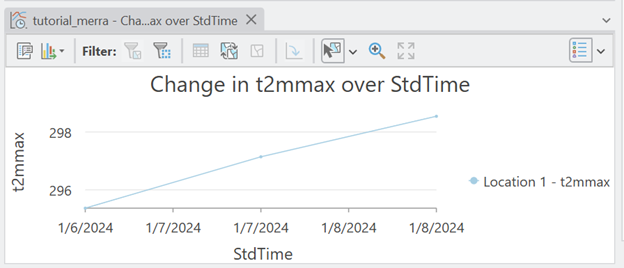
  2. Click on Temporal Profile.
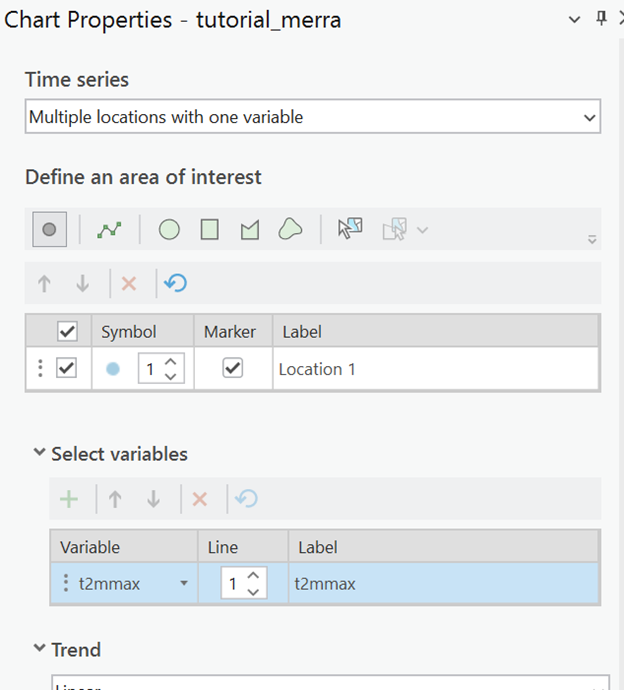
    1. Define area(s) of interest.
    2. Select desired variable(s).
Image
Image Caption

Screenshot of suggested settings for the "Chart Properties" tool in ArcGIS Pro

Image
Image Caption

Screenshot of an example plot created by the "Chart Properties" tool in ArcGIS Pro

9. Save and Document 

  1. Save your project to retain the mosaic dataset configuration.
  2. Document the mosaic dataset by adding metadata (right-click on the dataset in the Catalog Pane).

Details

Last Updated

Nov. 17, 2025

Published on

Nov. 17, 2025