In this data recipe, learn how to create a time-enabled multidimensional mosaic dataset using GeoTIFF/Cloud Optimized GeoTIFF (COG) files in the GIS desktop program ArcGIS Pro. It also guides users through the process of combing multiple GeoTIFF files into a mosaic, and covers how to perform data prep, add data to the mosaic, build multidimensional info, and set mosaic properties. Mosaic datasets can be used in data analysis and visualizations.

The data used in this recipe comes from NASA’s ECOsystem Spaceborne Thermal Radiometer Experiment on Space Station (ECOSTRESS). If you’d like to follow along, you can download these data by clicking the following links: data download link 1, data download link 2, and data download link 3

If you’d like to watch a video tutorial for this content, you can find it at NASA Earthdata’s YouTube channel

Note: An Earthdata Login account is needed to download these data. View this tutorial to learn how to create an account

Step 1: Create a File Geodatabase

  1. Open ArcGIS Pro and create or open a project.
  2. In the Catalog Pane, right-click on a folder where you want to store your geodatabase.
  3. Select New > File Geodatabase.
  4. Name your geodatabase (e.g., ecostress.gdb). 

Step 2: Create the Mosaic Dataset

  1. In the Catalog Pane, right-click your new geodatabase.
  2. Select New > Mosaic Dataset.
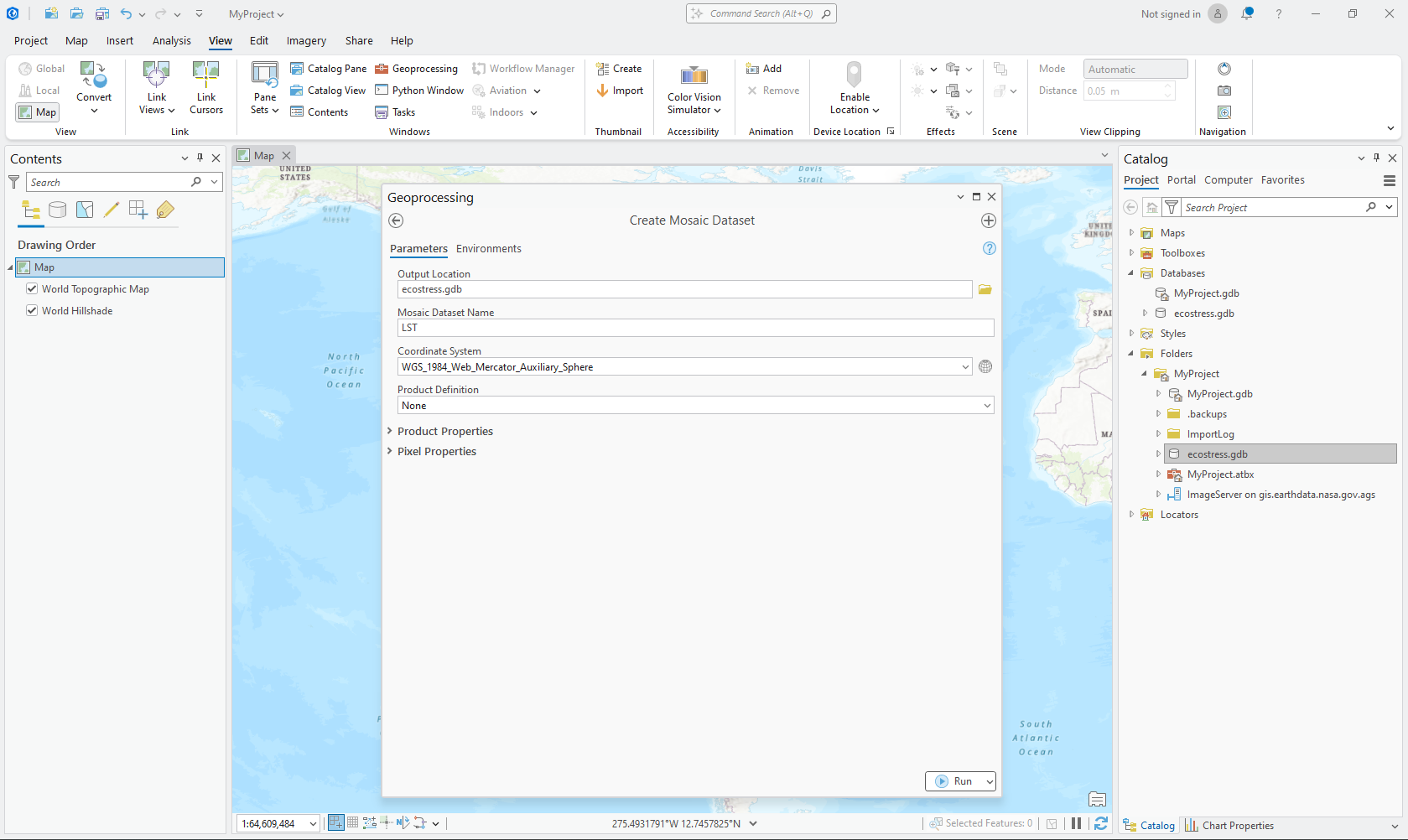
  3. In the Create Mosaic Dataset tool:
    1. Enter a Name (e.g., LST).
    2. Choose an appropriate Coordinate System (e.g., WGS 1984 or your dataset’s projection).
  4. Click Run. 
Image
Image Caption

Screenshot of suggested settings for the "Create Mosaic Dataset" geoprocessing tool in ArcGIS Pro

Step 3: Add TIFFs to the Mosaic Dataset 

  1. In the Analysis tab, open the "Add Rasters To Mosaic Dataset" tool.
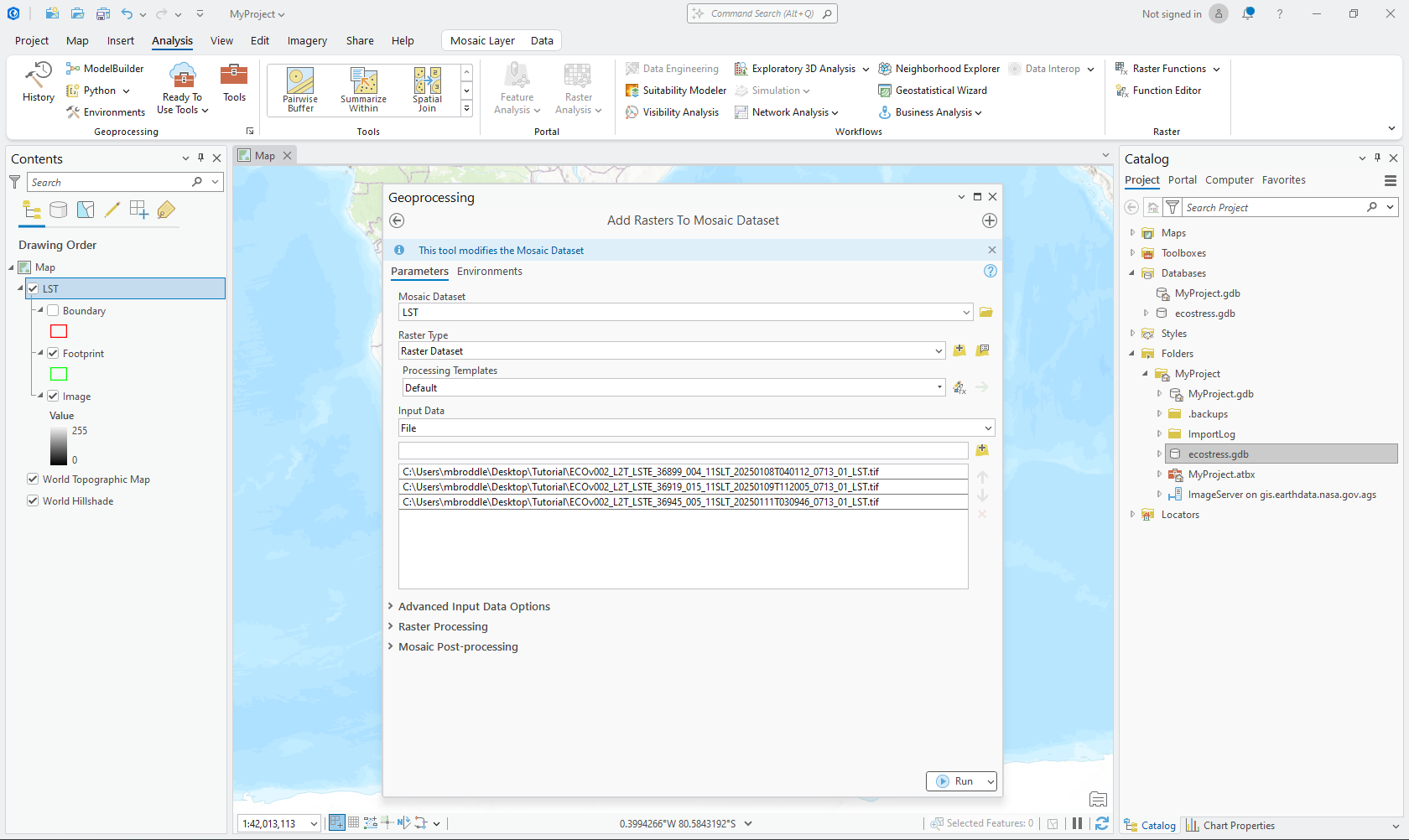
  2. In the tool’s parameters:
    1. Set Input Mosaic Dataset to the mosaic you created.
    2. For Raster Type, select Raster Dataset.
    3. For Input Data, select the folder containing your GeoTIFFs. Select desiried files.
  3. Click Run. 
Image
Image Caption

Suggested settings for the "Add Rasters To Mosaic Dataset" geoprocessing tool in ArcGIS Pro

Step 4: Add and Populate the StdTime Field 

  1. In the Contents Pane, right-click your mosaic dataset and select Open Table.
  2. In the attribute table, click the Add Field button (on the toolbar).
  3. In the Add Field dialog:
    1. Name the field StdTime.
    2. Set the Data Type to Date.
    3. Click OK to create the field.
  4. Populate the StdTime field.
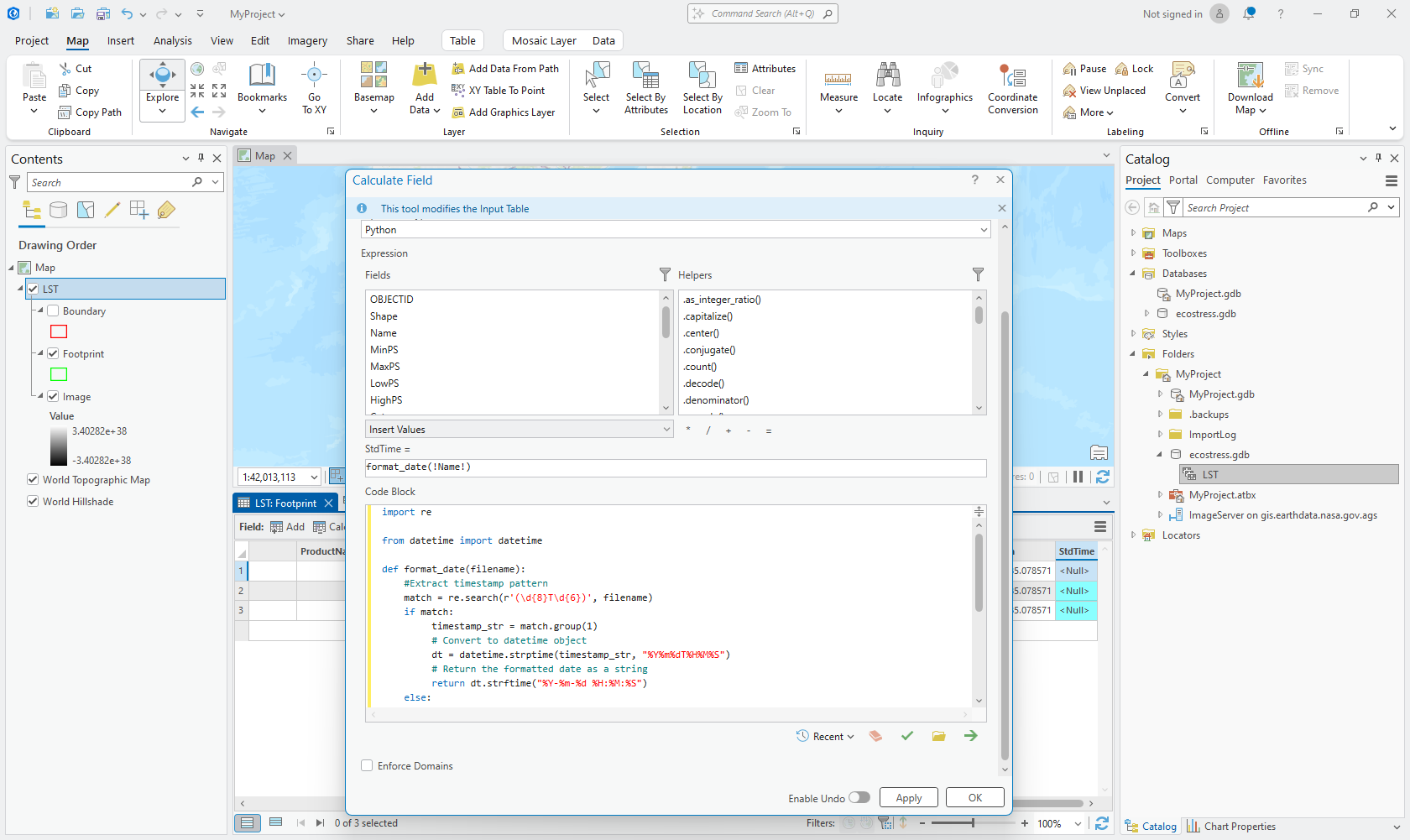
  5. Open the table and select Calculate Field tool. Then, set the following:
    1. Field Name = “StdTime.”
    2. For the Expression field, use: “format_date(!Name!)”
    3. For the code block, use Python function to extract time from the filename (example below).
    4. Then click Run.

import re 

from datetime import datetime 

def format_date(filename): 

    #Extract timestamp pattern 

    match = re.search(r'(\d{8}T\d{6})', filename) 

    if match: 

         timestamp_str = match.group(1) 

         # Convert to datetime object 

         dt = datetime.strptime(timestamp_str, "%Y%m%dT%H%M%S") 

         # Return the formatted date as a string 

         return dt.strftime("%Y-%m-%d %H:%M:%S") 

    else: 

         return None # Return None if no valid timestamp is found 

Image
Image Caption

Screenshot of suggested settings for the "Calculate Field" geoprocessing tool in ArcGIS Pro

Step 5: Set the Variable for Multidimensional Analysis 

  1. Open the Add Multidimensional Information tool. 
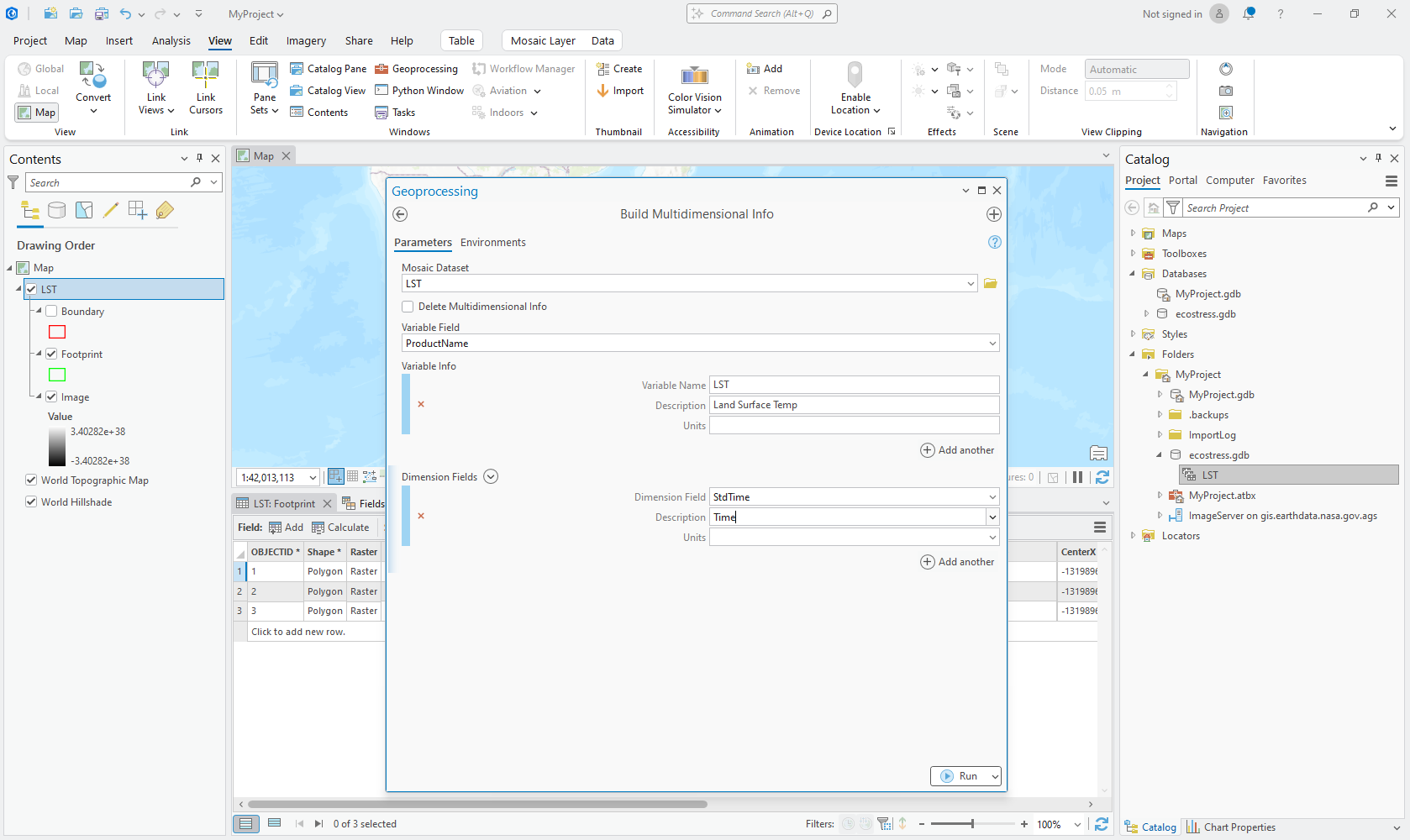
  2. Set the following: 
    1. Input Mosaic Dataset = Your mosaic dataset. 
    2. Variable Name = A descriptive name for your data (e.g., Temperature or Precipitation). 
    3. StdTime Field = Select the StdTime field you populated earlier. 
    4. For the Dimension Name, enter time.
  3. Click Run. 
Image
Image Caption

Screenshot of suggested settings for the "Build Multidimensional Info" geoprocessing tool in ArcGIS Pro

Step 6: Set Mosaic Dataset Properties 

  1. In the Contents Pane, right-click your mosaic dataset and select Properties. 
  2. In the Mosaic Dataset Properties dialog: 
    1. Under the General tab, ensure the Data Source Type is set to Multidimensional Raster. 
    2. Under the Defaults tab, set the Allowed Compression Method and other desired settings. 
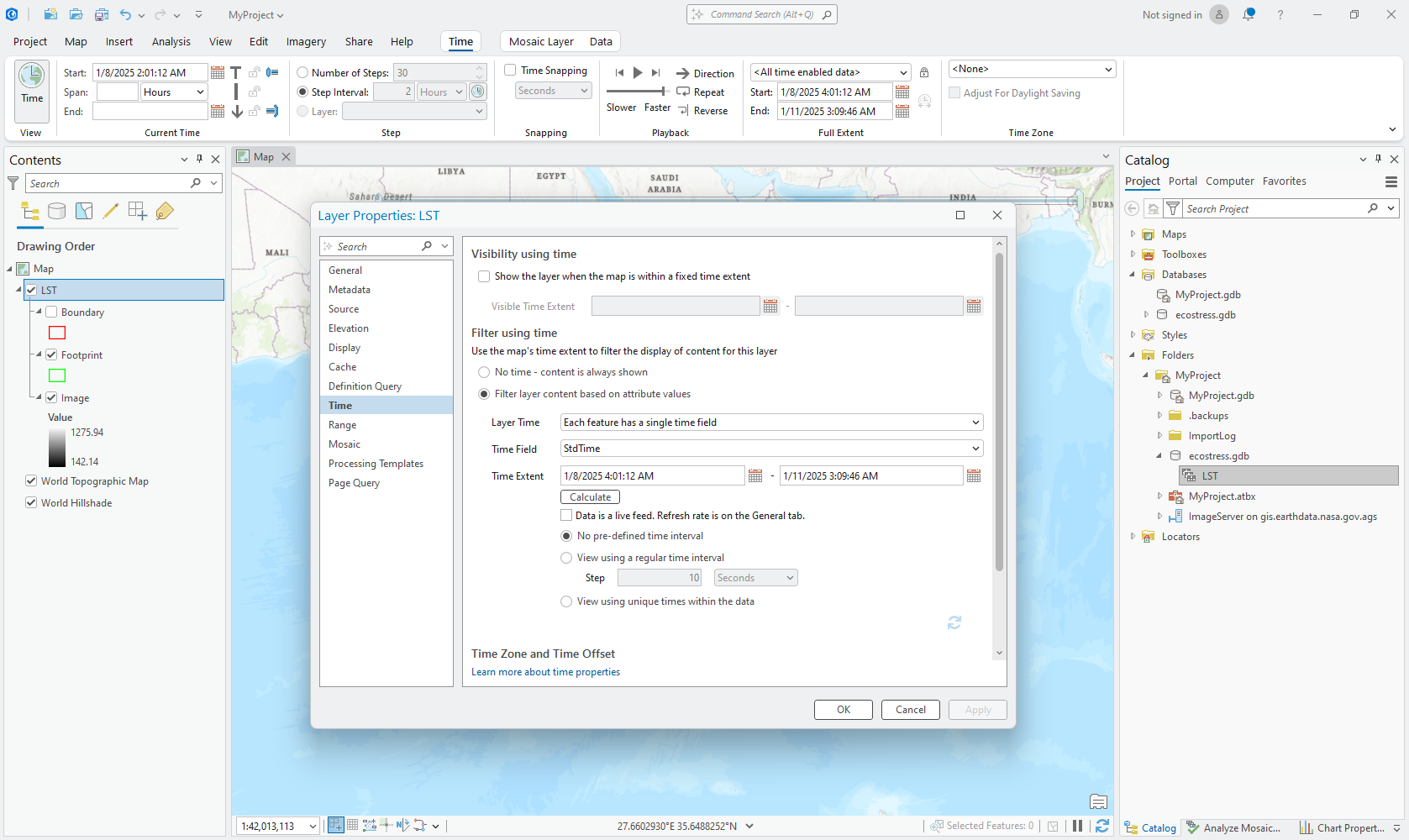
    3. Under the Time tab, ensure Time is enabled with the correct Time Field. 
Image
Image Caption

Screenshot of suggested settings for the "Set Mosaic Dataset Properties" geoprocessing tool in ArcGIS Pro

Step 7: Verify the Results 

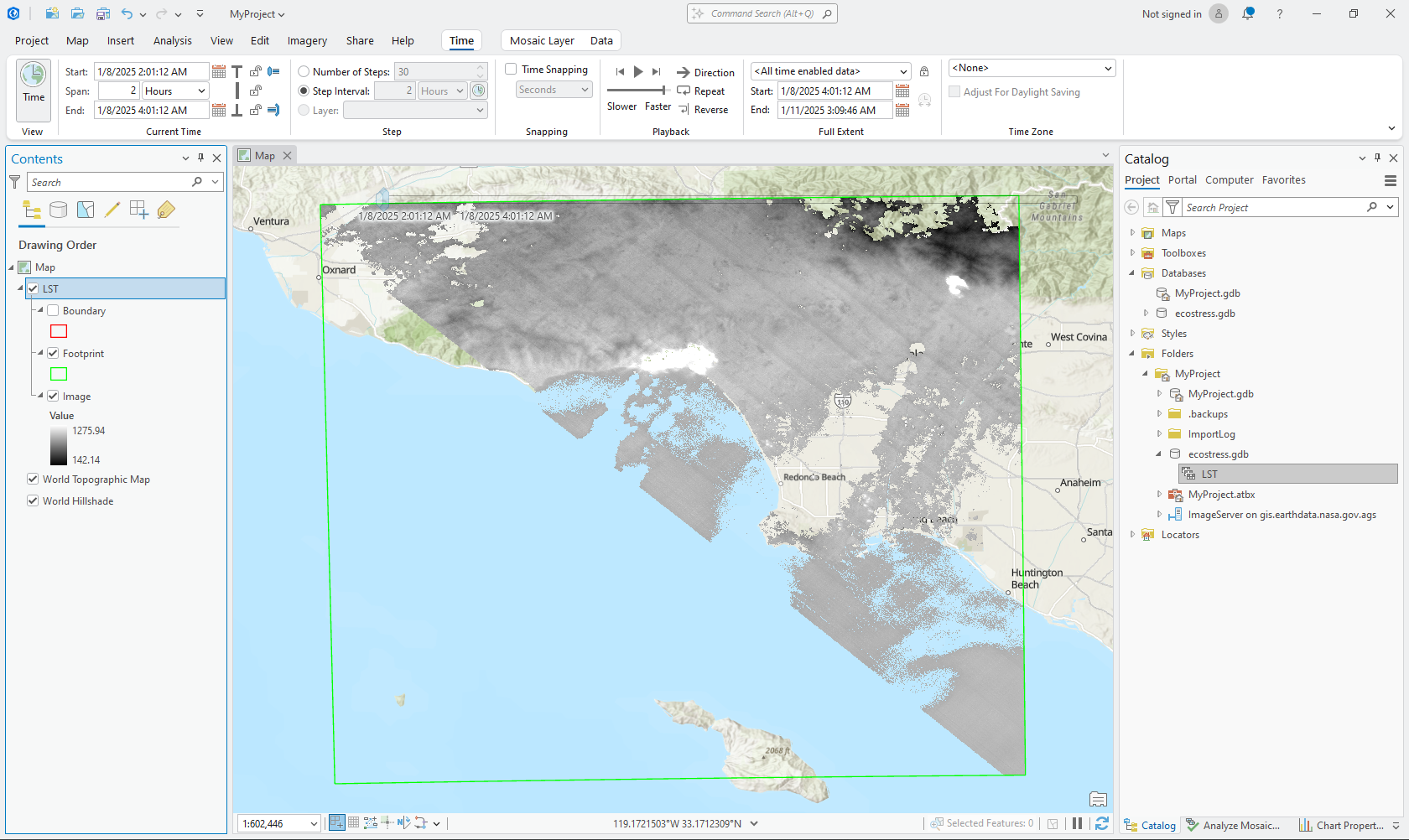
  1. Add your mosaic dataset to the map.
  2. Open the Multidimensional Filter in the Analysis tab.
  3. Use the filter to explore data by time or variable. 
Image

Details

Last Updated

Nov. 17, 2025

Published on

Nov. 17, 2025